


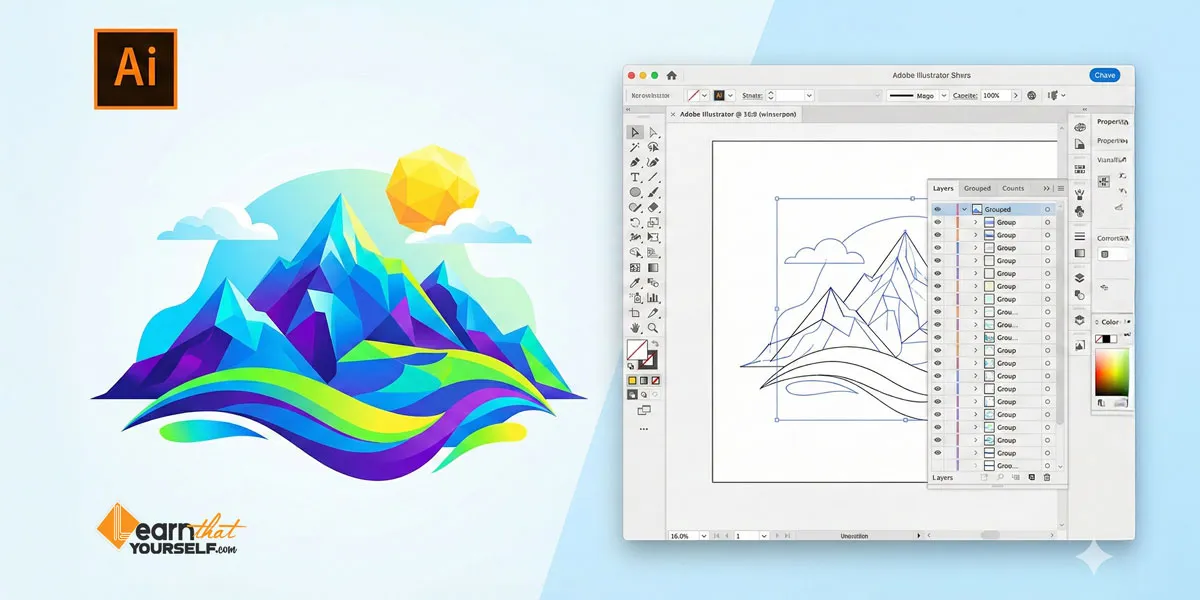
Before you start: This guide is designed to answer not just “What is Adobe Illustrator?” but also when, why and how to use it in your creative workflow. It aims to be a thorough resource for anyone transitioning into digital design—from students and hobbyists to professionals in print and digital media.
Adobe Illustrator is one of the most influential graphic design applications ever created. If you’ve browsed creative portfolios, seen company logos or admired vector art prints, you’ve likely experienced the output of Illustrator—even if you didn’t know it.
Yet for many newcomers, Illustrator is intimidating, mysterious and in some cases, misunderstood. This guide will cut through that confusion, clarify Illustrator’s place in the digital graphics ecosystem and help you decide whether it’s the right tool for your project.
My name is Lalit Adhikari and we are at LTY. Let’s begin!
Table of Contents
What is Adobe Illustrator?
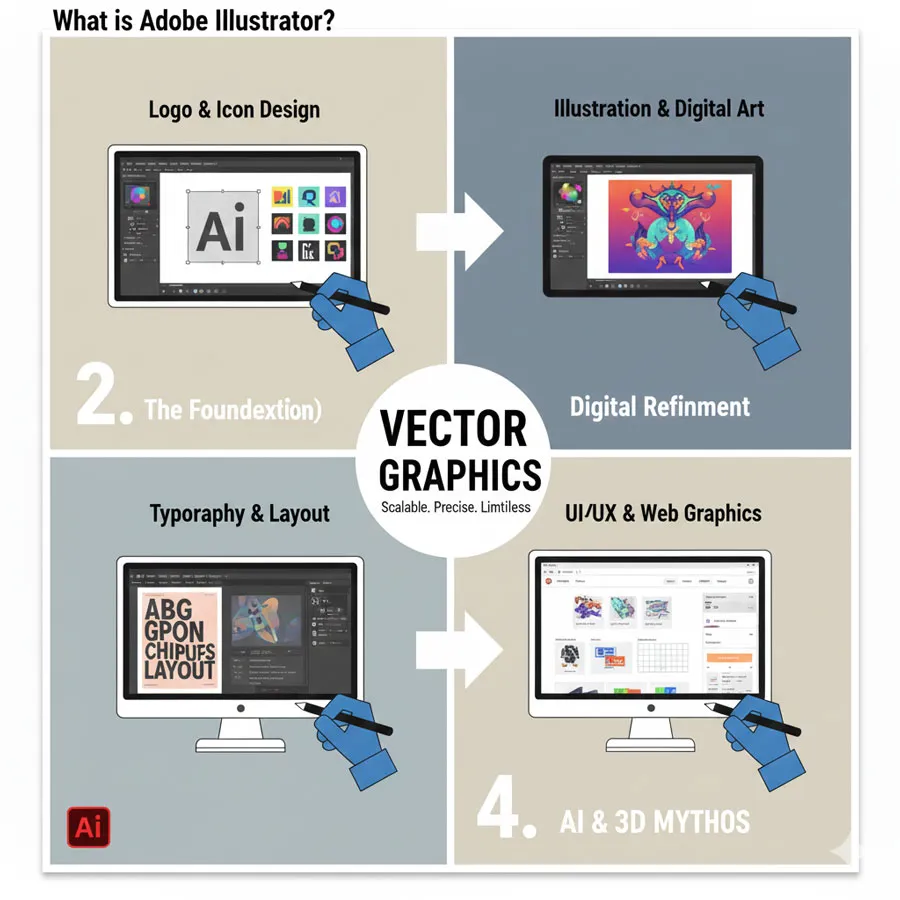
Adobe Illustrator is a vector software that uses mathematical shapes to draw on the canvas and therefore the output will always be a vector-based output.
Adobe Illustrator is a professional-grade vector graphics editor developed by Adobe Inc. Released in 1987, it quickly became the standard for creating vector-based artwork, including logos, icons, illustrations, typography and print layouts.
Unlike pixel-based (raster) programs, Illustrator uses mathematical equations and geometric primitives to define shapes, lines and curves, allowing infinite scalability without quality loss.
Fact: Illustrator works primarily with vector graphics, meaning our designs remain crisp and editable at any size—a trait crucial for print production and branding.
What is Vector?
In terms of Physics and Mathematics, Vector is defined as a quantity having a direction as well as magnitude especially as determining the position of one point in space relative to another.
In Graphic Designing, we are dealing with something similar called Vector Graphics which work on the same principle as above.
The Core Philosophy: Vectors
A vector, in design, is an object defined by points, lines and curves—which are described by mathematical equations. Each shape in Illustrator has properties like stroke weight, color, curvature and fill value. These attributes can be changed, transformed or scaled without causing any destructive pixelation.
This property makes Illustrator essential for:
- Logo creation (where designs must be sized from a business card to a billboard)
- Illustrations (especially for print or merchandise)
- Digital typography and font creation
- Technical graphics, charts and infographics
What is Vector Graphics?
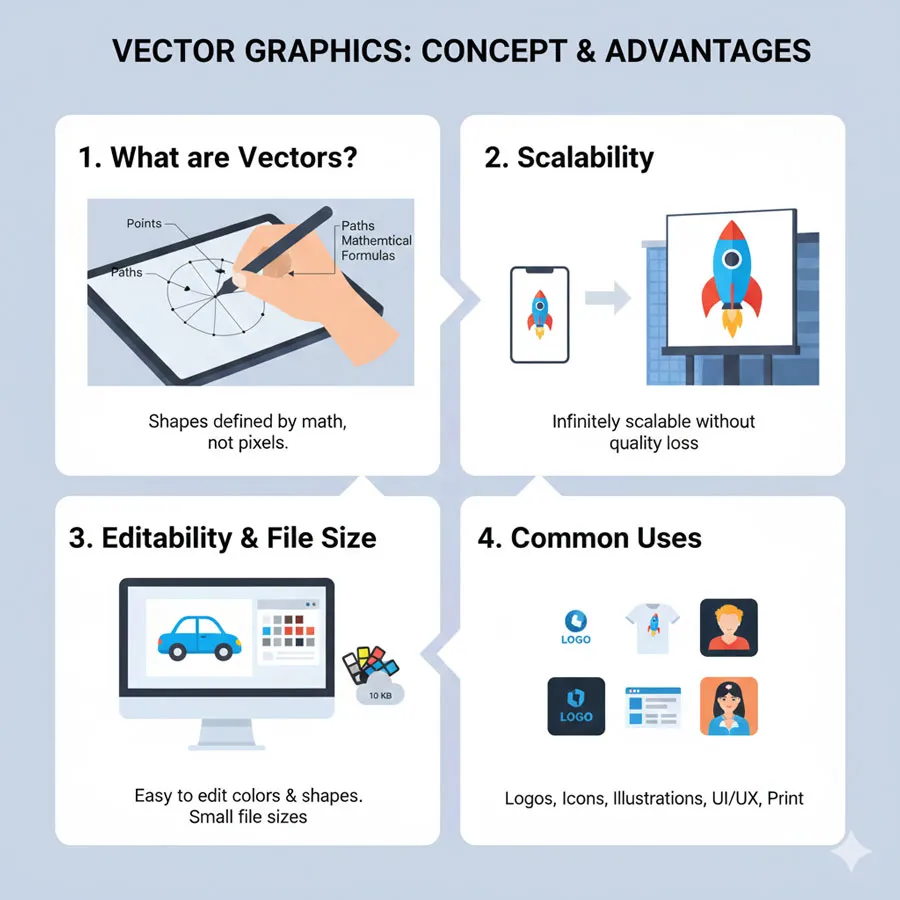
Vector Graphics are computer graphics which are defined in terms of 2 dimensional points (or anchor points).
Points (or anchor points) are connected to one another by lines and curves (also known as path or edge) to form various geometrical shapes like rectangle, ellipse (circle or oval) and polygons etc.
All of these points have a definite position on the x-axis and y-axis of the Art Board or Canvas or Work Plane. Hence determines the direction of the path.
These paths may have different properties values such as stroke color, shape, curve, thickness (or stroke weight) and fill.
Most used file formats or extensions for Vector Graphics are SVG, EPS, PDF, CDR or AI.
For commercial purposes, a Vector Graphics may need to be converted into a Raster Graphic file formats like JPEG, PNG etc.
What You Can Create
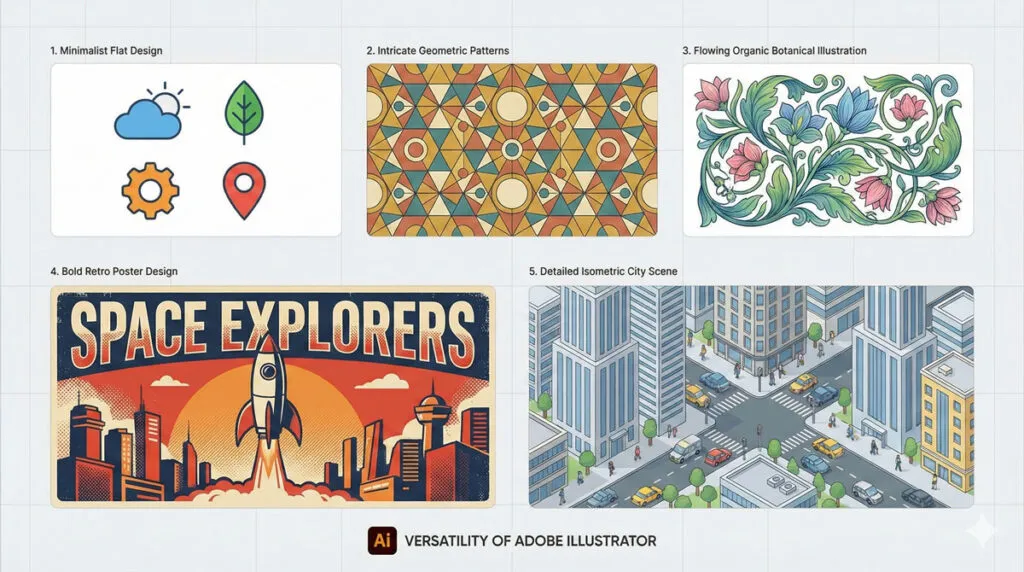
Illustrator’s toolkit empowers us to design a huge range of visuals, such as:
- Company logos
- Custom typography
- Poster art and banners
- Web icons and UI elements
- Vector illustrations and cartoons
- Maps and schematics
- Print designs for mugs, shirts, packaging and more
Related Topics:
- Master Adobe Illustrator’s Line, Arc, Spiral & Grid Tools: Complete Step-by-Step Tutorial for Designers
- Master Adobe Illustrator Shape Tools: Complete Guide
- Master Illustrator Type Tool: Complete Guide
Illustrator vs. Photoshop: Fundamental Differences
Assumption check: Many beginners conflate Illustrator and Photoshop or believe they serve identical purposes. This is incorrect and leads to improper use-cases, wasted time and poor output quality.
| Feature | Illustrator (Vector) | Photoshop (Raster/Bitmap) |
|---|---|---|
| Core Data Type | Vectors (mathematical objects) | Pixels (color squares) |
| Output Quality | Infinitely scalable without loss | Degrades if scaled up |
| Use Cases | Logos, icons, illustrations, typography, print | Photo editing, web graphics |
| File Types | AI, SVG, EPS, PDF | PSD, JPEG, PNG, TIFF |
| Editing Approach | Object-based, non-destructive, re-editable | Layer/pixel-based, often destructive |
| Ability to Manipulate | Move, scale, reshape everything easily | Limited to pixels, less flexible |
| Ease of Use | Steep learning curve, less intuitive for photos | Accessible for image editing |
| Layer System | Object stacking, true vector layers | Layer stacking, pixel layers |
| Workplace Integration | Industry standard for print/ layout/ vector branding | Standard for photography/ web |
Fact: Use Illustrator for branded visuals and print design where scalability and clean shapes matter. Photoshop excels for pixel-perfect photo manipulations, retouching and image composites.
| Adobe Illustrator | Adobe Photoshop |
|---|---|
| Adobe Illustrator is a vector-based software application. | Adobe Photoshop is a bitmap or raster-based application. |
| Designs created in Illustrator are Vector Graphic, optimum for prints and web. | Output of Photoshop are always Raster Graphics. Optimum for digital work. |
| A typical vector graphic is something that is drawn using paths. It’s an object-based document and you can scale up as big or small as you want, and it would still maintain the edge fidelity. | In case of Photoshop, you are working with Raster Graphics or bitmap graphics. They can only scale up to a limit. |
| With advancement in web and app technologies, use of Vector Graphics is also increasing. | A lot of standard graphics are created in Photoshop because it’s a very easy tool to use and you can push pixels around. It’s not as constrained and defined by these path-based object. |
| For example: Illustrator ‘Blur’ is kind of a ‘fake blur’ applied to a vector object that re-renders it every time you resize the artwork. | For example: Blur effect in Photoshop is easy to use and reuse. |
| Illustrator is an object-based editing tool, so in Illustrator you have stacks of the object, and the object just has a bunch of attributes attached to it. | As Photoshop is Raster based and support layers, it also has stacking but as it’s Raster, every time we edit it. It gets destroyed. |
Related Topics:
- Master Paintbrush and Blob Brush Tool in Illustrator: Complete Guide
- How to use Eraser tool in illustrator
- How to use the Pen Tool in illustrator
Understanding Vector Graphics vs. Raster Graphics
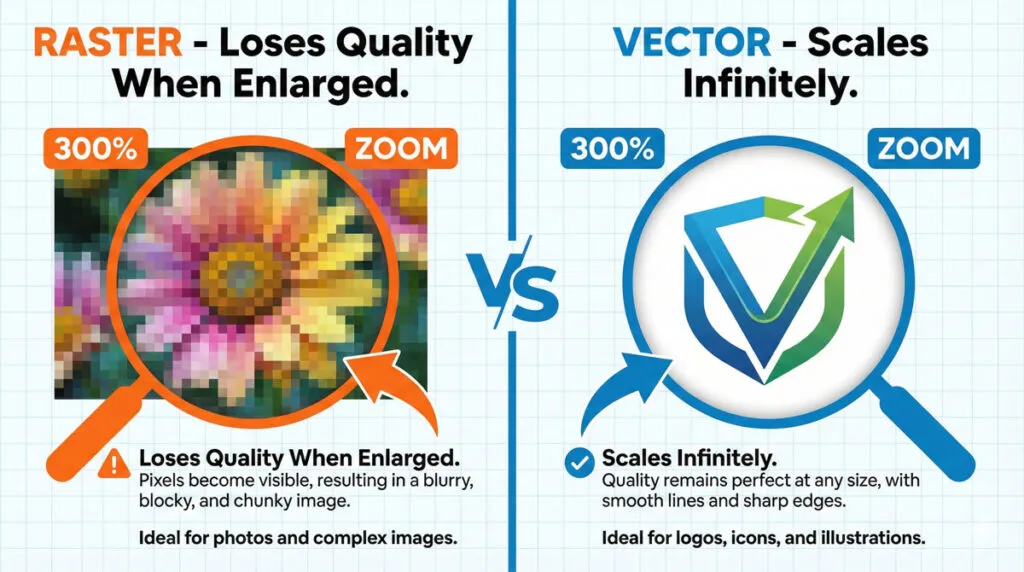
A decisive step in mastering digital design is grasping the difference between vector and raster graphics. Let’s look at an example to further understand Vector and Raster Graphics.
Vector Graphics
- Defined by anchor points, paths, lines, curves
- Edges remain perfectly sharp regardless of scale
- Small file sizes for complex shapes
- Editable at any stage (change color/size/shape instantly)
- Common Formats: SVG, EPS, PDF, AI, CDR
Example: A logo designed in Illustrator can be scaled from a postage stamp to a building without loss of quality.
Raster Graphics
- Comprised of a fixed grid of pixels, each with a color value
- Scaling up leads to blurring and loss of sharpness
- Larger files for high-resolution images
- Best for photographs or complex images
- Common Formats: JPEG, PNG, BMP, PSD, TIFF
Example: A photograph imported into Illustrator becomes a single, uneditable pixel object; attempts to scale or edit it convert the image into blurry, unusable artwork.
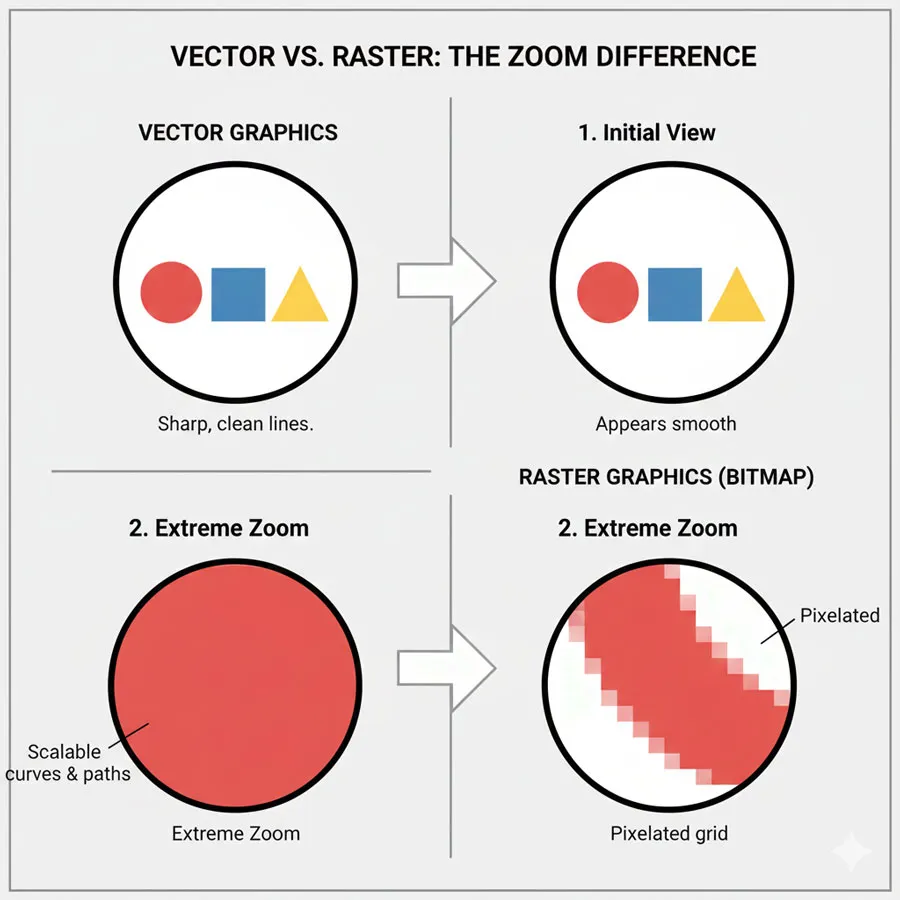
Hence, Vector files are recommended for Print purposes and Raster Graphics are good for Digital media.
The whole purpose of working with Adobe Illustrator is to make vector-based illustrations or designs, a common example will be logos. Vector graphics are solely made up of anchor points and lines and there are unlimited ways in which you can alter the artwork according to your requirements.
You can even choose different colors for individual objects on the canvas. Now, on the other hand, if we click on the rasterized image, you will notice that the whole image is just made up of one component.
That means we can’t manipulate the artwork in any way since illustrator works with individual vector-based component and a raster image is treated as a single object.
So, if you are working with an image, there’s little what illustrator can do to manipulate the artwork. On the other hand, there is an infinite number of possibilities when it comes to vector-based artwork.
Related Topics:
Who Should Use Adobe Illustrator?
Fact: Illustrator fits anyone needing flexible, scalable, print-ready vector artwork.
- Beginner Designers: Learn shape construction, flawless edges and object-based editing.
- Brand Managers: Ensure logos look perfect on every medium.
- Illustrators & Cartoonists: Ability to create detailed, editable art for books, media and merchandise.
- Web/UI Designers: Create pixel-perfect icons, buttons and interactive elements.
- Print Designers: Prepare vectors for magazines, packaging, posters and apparel.
Challenge: Many digital artists stick with Photoshop or Canva out of habit, missing out on the industry power of vectors. Mastering Illustrator dramatically expands your career options but the tool’s steep learning curve can intimidate those who never move beyond templates.
Related Topics:
- Shape Builder, Live Paint Bucket tool in illustrator
- Adobe Illustrator vs Photoshop for Beginners: Which Should You Learn First?
- How to Create a Logo in Adobe Illustrator: Complete Step-by-Step Tutorial for Beginners
Main Features of Adobe Illustrator
Illustrator is packed with robust features that define industry standards:
- Shape Tools: Create rectangles, ellipses, polygons, stars; combine and edit seamlessly.
- Pen Tool: Draw custom lines, curves and complex paths—essential for high-precision vector work.
- Type & Typography Tools: Design advanced text objects, manipulate fonts and generate custom typographic effects.
- Brushes & Effects: Apply strokes, fills and complex art brushes; simulate various artistic styles.
- Artboards: Work on multiple canvases in a single project for efficient portfolio building.
- Layer Management: Stack, group, and mask objects for smart organization.
- Image Trace: Convert raster images into editable vectors.
- Symbol Library: Reuse graphics and maintain consistency across large projects.
- Export Options: Save work in myriad formats; SVG for websites, PDF for print, PNG/ JPEG for web previews.
- Customizable Workspace: Move palettes, save layouts and streamline our workflow.
Related Topics:
- How to use Gradient Tool in Illustrator
- How to use Mesh Tool in illustrator
- How to make a Semicircle in Illustrator
Use Cases and Projects for Illustrator
Logos and Branding
Create logos that retain perfection across all sizes, from business cards to banners. Typography, color matching and unique shapes set brands apart.
Icon & UI Design
Design web interfaces, mobile icons and interactive elements. SVG exports ensure crisp visuals for all screen sizes.
Print Design
From posters and flyers to merchandise—print vectors never lose fidelity, avoid pixelation, and enable perfect color separation for screen printing.
Illustrations & Books
Children’s book art, editorial illustrations, comic characters—all benefit from Illustrator’s flexible sketch-to-final workflow.
Technical Graphics
Create diagrams, charts, schematics, maps and instructional graphics for textbooks and professional presentations.
Packaging and Apparel
Design for boxes, bottles, clothing and accessories. Illustrator’s precision guarantees perfect die-cuts and print alignment.
Related Topics:
- How to design a Retro Flower Pattern
- How to set Brush Pressure in Illustrator
- How to Create A Pressure Sensitive Brush in Illustrator
Adobe Illustrator File Formats Explained
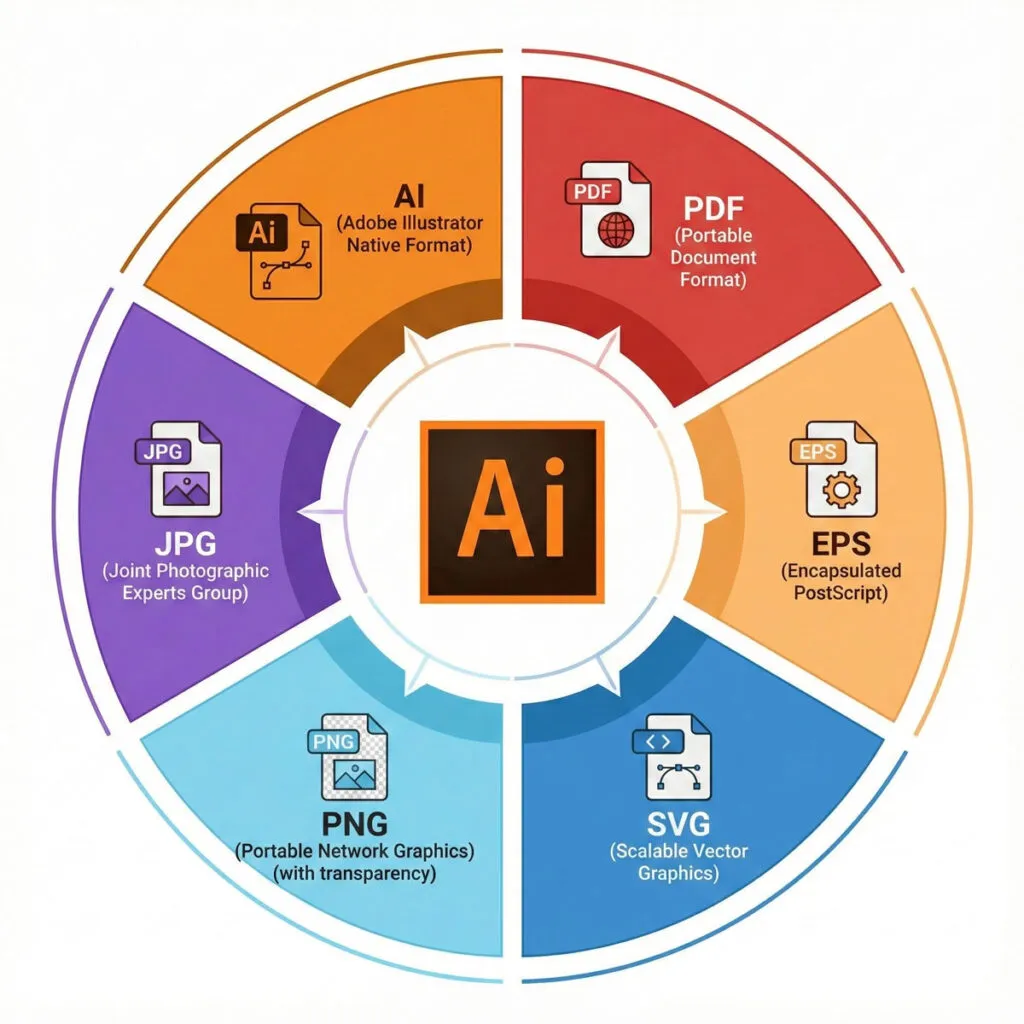
Understanding file types lets you export, share, and print without confusion:
| Format | Usage | Pros | Cons |
|---|---|---|---|
| AI | Native format | Full editability, maintains layers | Limited compatibility |
| SVG | Web graphics | Scalable, web-ready, small file size | Complex for images |
| EPS | Universal print standard | Not for animation | |
| Print & sharing | Good for multi-page, accessible format | Can be bloated | |
| CDR | CorelDRAW native | Edit in CorelDRAW or import to Illustrator | Compat issues |
| PNG/JPEG | Web previews | Simple, ubiquitous | Lossy, not editable |
Exporting the right format depends on your destination—print, web, animation or collaboration.
Related Topics:
- How to Create Metallic effect in Illustrator
- How to Create Flower using Gradient Mesh in Illustrator
- How to Recolor Artwork in illustrator
Common Beginner Mistakes in Illustrator
- Using Illustrator for Photo Editing
- Illustrator is not designed for photo manipulation—using it for such tasks leads to frustration and poor results.
- Ignoring Layers & Grouping
- Beginners often skip organizing objects, making it hard to select, edit, or export for print.
- Not Mastering the Pen Tool Early
- Pen Tool mastery unlocks Illustrator’s highest potential; struggle with it and you miss the power of custom art.
- Improper File Output
- Exporting a logo as JPEG for print leads to loss of quality. Use PDF, EPS, or SVG for scalability.
- Failure to Use Artboards
- Keeping everything on one canvas complicates edits. Separate artboards for each version speeds up workflows.
- Using Raster Images as Vectors
- Importing photos and expecting easy vectorization is a misstep. Successful image trace requires strong contrast and clear edges.
Related Topics:
Illustrator Alternatives: Affinity Designer, CorelDRAW, Inkscape and More
Adobe Illustrator is powerful but not the only vector design tool available.
Affinity Designer
A free, fully featured alternative with professional-grade vector and raster tools. Strong for logos, UI, and print design.
Pros: One-time fee, cross-platform, seamless raster/vector integration
Cons: Smaller ecosystem, fewer tutorials
CorelDRAW
Industry veteran, especially in engineering and signage. Wider support for print shops and technical design.
Pros: Excellent for technical graphics, broad printer support
Cons: Less ubiquitous outside technical circles
Inkscape
Open-source and free, ideal for students or hobbyists. Strong SVG output; less polished user-interface.
Pros: Free, active community
Cons: Steeper learning curve, fewer advanced tools
Other Options
- Sketch: Best for UI/UX, focus on designers building apps or websites.
- Gravit Designer: Free and web-based for quick editing.
Fact: If your workflow requires advanced photo manipulation, use Photoshop. For vectors at scale, Illustrator or its alternatives stand out.
Related Topics:
Getting Started With Illustrator: First Steps and Resources
- Set Goals
- Decide whether you’re building logos, icons, print layouts, or digital illustrations. This determines which tools and tutorials to prioritize.
- Download and Install
- Get a trial from the Adobe site, set up on Mac or Windows (Illustrator does not support Linux).
- Explore the Interface
- Learn the toolbar, panels, artboards, and navigation shortcuts. Start with the workspace presets for beginners.
- Master Fundamental Tools:
- Shape tools: Create rectangles, ellipses and polygons.
- Selection tools: Move, group and scale objects.
- Pen Tool: Learn to draw straight and curved lines, combine shapes.
- Text Tool: Add editable type objects, modify fonts and spacing.
- Practice With Guided Exercises
- Create a simple logo using only shapes and the Pen Tool.
- Draw basic icons for web or app interfaces.
- Design a business card using type and vector graphics.
- Export your work as SVG for web or PDF for print.
Recommended Resources
- Official Adobe tutorials and community forums
- YouTube channels like Yes I’m a Designer, Adobe Creative Cloud, Spoon Graphics
- Interactive online platforms such as Skillshare, Coursera, or Udemy
Opinion: Don’t try to learn every tool at once. Focus on projects you care about—practical experience conquers overwhelm.
Related Topics:
Frequently Asked Questions About Adobe Illustrator
Q: Is Adobe Illustrator beginner-friendly?
A: Illustrator has a learning curve, but its object-based editing is logical and rewarding. Tutorials, templates, and a strong community make onboarding easier.
Q: Does Illustrator replace Photoshop?
A: No. Illustrator is for vector graphics (logos, icons, illustrations); Photoshop is for raster art (photos, textures, detailed image editing). Use both for versatile workflows.
Q: Can I use Illustrator to design websites?
A: You can create web graphics and UI elements, but actual website building relies on platforms like Figma, Sketch, or coding tools.
Q: What is the best SVG editor?
A: Illustrator is recognized as a premium SVG editor, but free tools like Inkscape are usable for basic editing.
Q: Is Illustrator available on iPad or mobile?
A: Illustrator is now available on iPad (since 2021), with a focused feature set for professional illustration.
Q: Can I create animated graphics?
A: Illustrator is not an animation platform, but you can export vector assets for use in After Effects or Animate.
Q: Is Illustrator affordable?
A: Illustrator is part of Adobe’s subscription model. Check student/education discounts, or explore alternatives like Affinity for one-time purchase.
Related Topics:
Conclusion: Is Illustrator Right for You?
Adobe Illustrator remains foundational to modern graphic design. Its ability to create crisp, scalable, editable visuals is unmatched for certain projects—especially branding, print, technical schematics, and illustration. Mastery takes effort but pays off in professional opportunities, creative expression, and workflow efficiency.
Key Fact: Illustrator is not for photo editing or casual graphics manipulation. If you need flawless logos, icons and print-ready artwork, Illustrator is essential. If your work is primarily photography or detailed pixel art, choose Photoshop or a raster-oriented tool.
Approach Illustrator as a tool to unlock creativity, not as a hurdle. Master the basics, and you’ll discover new potential in every corner of your craft. Remember: Great design starts with clarity—choosing the right tool is your first creative act.
Related Topics:
About the Author
Lalit M. S. Adhikari is a Digital Nomad and Educator since 2009 in design education, graphic design and animation. He’s taught 500+ students and created 200+ educational articles on design topics. His teaching approach emphasizes clarity, practical application and helping learners.
Learn more about Lalit Adhikari.
Last Updated: Jan 2026
This guide is regularly updated with the latest information about Adobe tools and design best practices. Last Updated: Mar 2026
Related Topics:
- Laws Of Design
- Typography
- Adobe PDF Presets in Photoshop
- How to create New Document in Photoshop
- What is Photoshop
- Create a Document in InDesign
- What is InDesign
- Starting CorelDRAW
- 10 reasons Why you are not becoming a good artist
- Breaking Down Creative Barricades








Good read.
Hi it’s me, I am also visiting this website on a regular basis, this site is actually fastidious and the visitors are really sharing pleasant thoughts.
Thanks
Спасибо! Хорошая информация.
It is helpful, thank you and keep up sharing such articles.
Thank you, very informative sir!
Thanks sir!
Thanks
Thank a lot!
Thank you
Thanks
Thank you…
Very nice post. I just stumbled upon your weblog and wanted to say that I’ve really loved browsing your blog posts. After all I will be subscribing to your feed and I hope you write once more soon!
It’s enormous blog regarding illustrator and completely explained, keep it up all the time.
Really, great informative article you have written here!
Thanks for such great blogs.
Greate article. Keep writing such kind of info on your blog. I’m really impressed by your blog. You’ve done an incredible job. I’ll certainly
digg it and in my view recommend to my friends.
I am sure they’ll be benefited from this web site.
Thanks for great information, I got looking regarding this information for my personal mission.
What’s up everyone, it’s my first go to see at this website, and piece of writing is actually fruitful designed for me, keep up posting such content.
Nice post.
Thank you…
Thanks
Thanks
Nice web blog here! Additionally your site so much up fast!
Thank you!
Thanks
Its good article regarding media print, we all be aware of media is a fantastic source of information.
Thank you
Thank you
Hi, I do think this is an excellent site. I stumbledupon it 😉
I may return once again since I book marked it.
Thank you
I couldn’t refrain from commenting. Very well written!
I have been surfing online more than 4 hours today, yet I never found any interesting article like yours.
It’s pretty worth enough for me. In my view, if all website owners and bloggers made good content as you did, the net will be a lot more useful than ever before.
Very nice post. I just stumbled upon your weblog and wished to say that I have truly enjoyed browsing your blog posts.
In any case I will be subscribing to your feed and I hope you write again soon!