

This post is the fourth in a series inspired by Austin Kleon’s book Steal Like an Artist: 10 Things Nobody Told You About Being Creative (Workman Publishing, 2012). The importance of using your hands and the idea of separate analog and digital stations come from his work, and the John Cleese and Kay Ryan references are as cited in his book. I introduced the basics in Post 2. This post goes further with a step-by-step workflow, classroom examples and exercises that are my own.
My name is Lalit Adhikari and we are at LTY. Let’s begin!
Table of Contents
Why Starting on Screen Can Stall Your Ideas
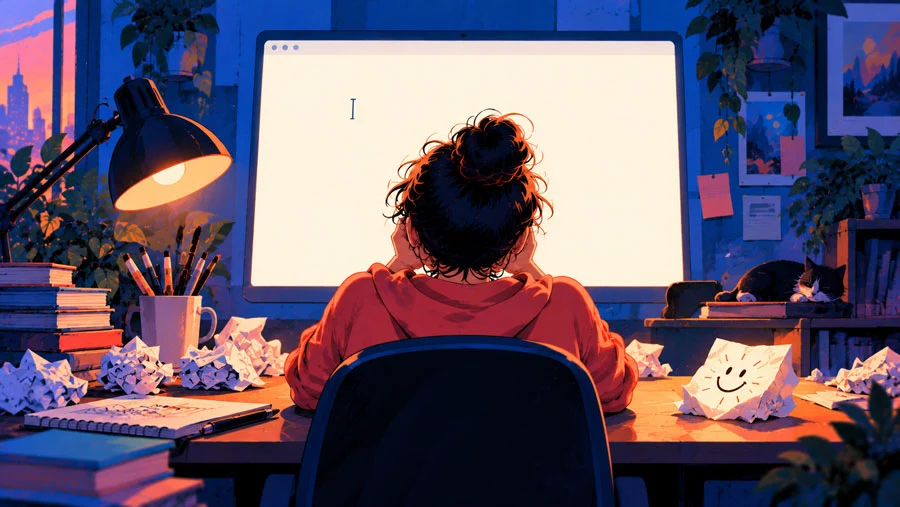
Computers are essential for designers, animators and marketers. I use them every day and so do my students. The question isn’t whether to use them, but where to start. Many of us open the software first, stare at a blank artboard and wait for an idea to arrive.
The comedian and writer John Cleese is quoted as saying that nobody knows exactly where ideas come from, but we do know they don’t come from our laptops (as cited in Kleon). A blank screen asks for a finished decision. A blank sheet of paper asks only for a scribble.
The Delete Key Problem (and Its Fix)
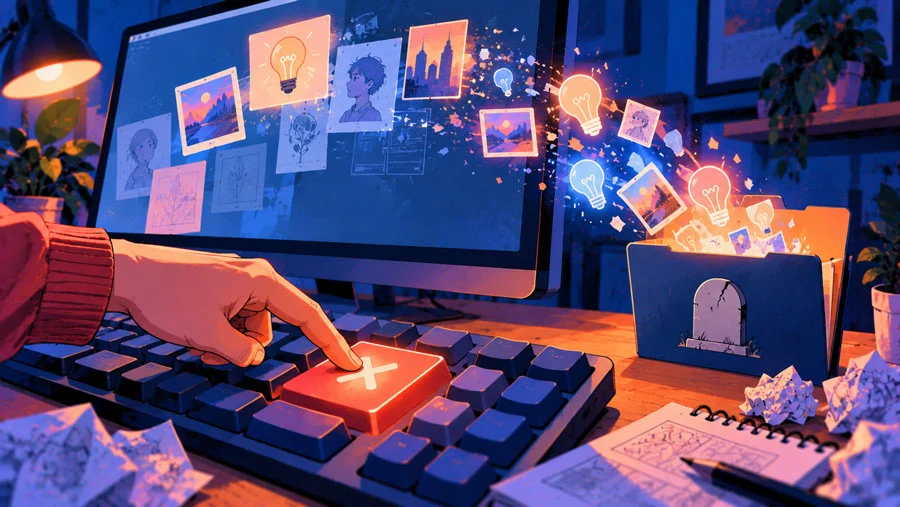
One of the biggest differences between paper and software is how easy it is to erase. Undo is instant, so half-formed ideas disappear before they have a chance to grow. You sketch a line and delete it. You type a headline and replace it. Nothing accumulates.
On paper, mistakes stay visible. You cross things out, but the evidence remains, and a weak first attempt often points to a better second one.
The fix on screen: duplicate instead of delete. Before a big change, save a new version (logo_v2) or duplicate the artboard. Keep a “graveyard” folder for discarded ideas. The idea you threw out on Monday is sometimes the one you need on Thursday.
Why Hands Help
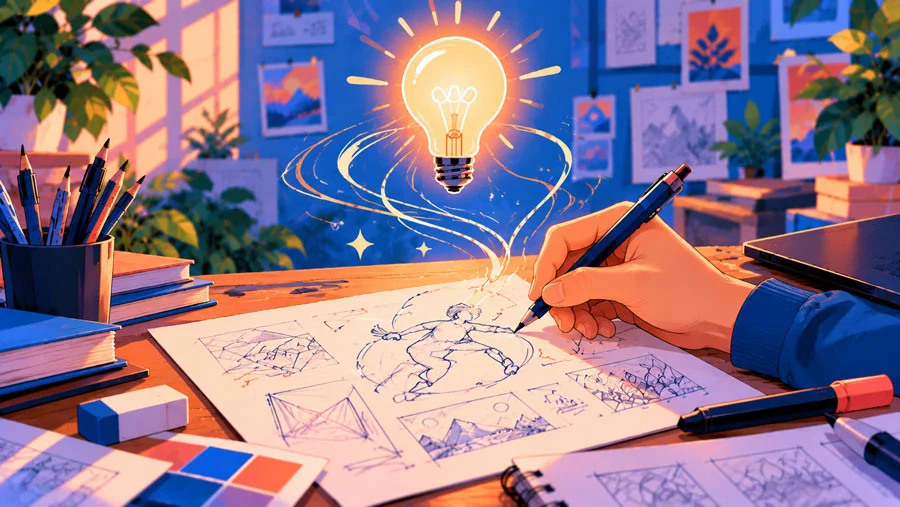
I covered the physical side of creativity in Post 2, so here is the short version. Movement helps thinking. When you’re stuck, starting the motion of drawing, cutting or arranging often starts the thinking too.
The idea is older than creative writing programs. The poet Kay Ryan has noted that before such programs, a workshop was a place, often a basement, where people worked with tools (as cited in Kleon). It’s a useful picture for any creative space: a place for making, not just for looking at a screen.
The Analog-Digital Loop in Six Steps
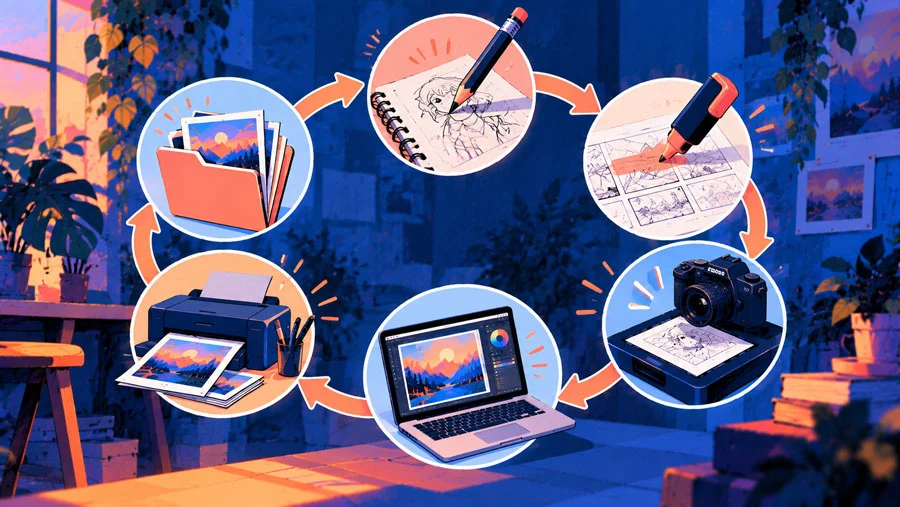
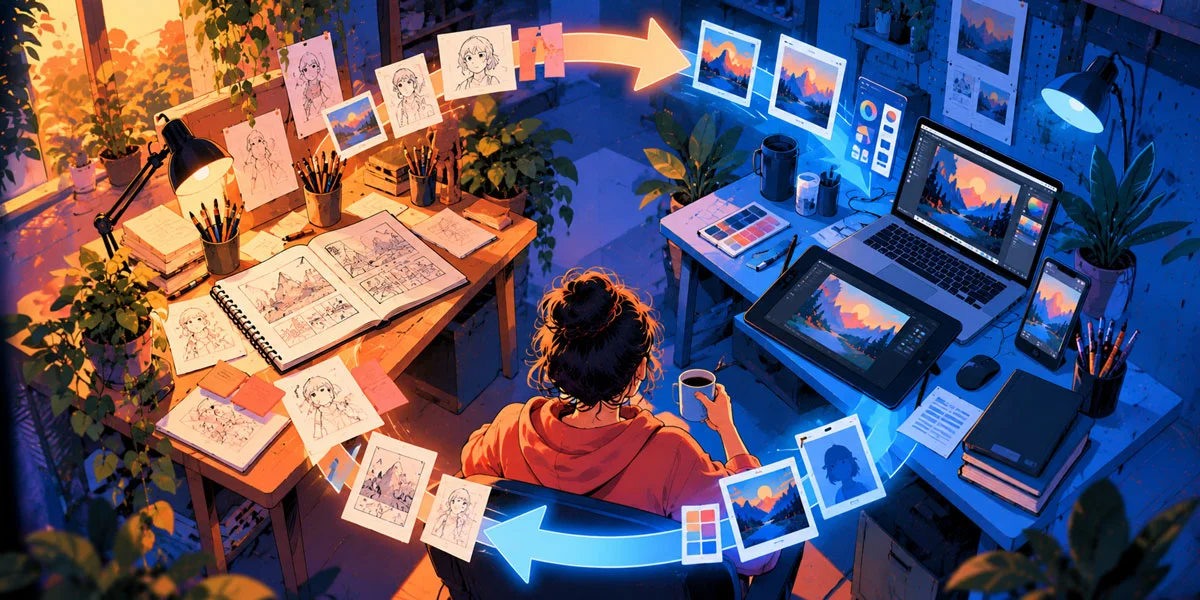
Here is the workflow I teach. It works for logos, posters, layouts, animations and social campaigns.
- Generate on paper. Set a timer for 30 to 60 minutes and fill pages with rough ideas: thumbnails, words, arrows, doodles. Don’t judge and don’t erase.
- Select and group. Step back and circle the three strongest ideas with a highlighter. Write one line on why you chose each.
- Capture. Scan or photograph the chosen sketches in good light at 300 dpi or higher and name the files clearly.
- Build on screen. Place the scans in your software and rebuild. In Illustrator, Image Trace can turn a clean line sketch into editable vector shapes. In Photoshop, you can paint over the scan. In InDesign, you can use it as a layout guide.
- Print and mark up. Print at actual size or larger and mark it up with a pen. Problems with spacing, type size and hierarchy are often easier to see on paper.
- Finish and archive. Apply the marked-up changes digitally, export and keep your sketches and versions so you can retrace your thinking later.
The loop can repeat. After step 6, you may find that a section needs fresh ideas and you go back to paper.
The Loop in Action: Examples From My Classroom

The Loop in Action: Examples From My Classroom
Graphic Design: Logo Sketching
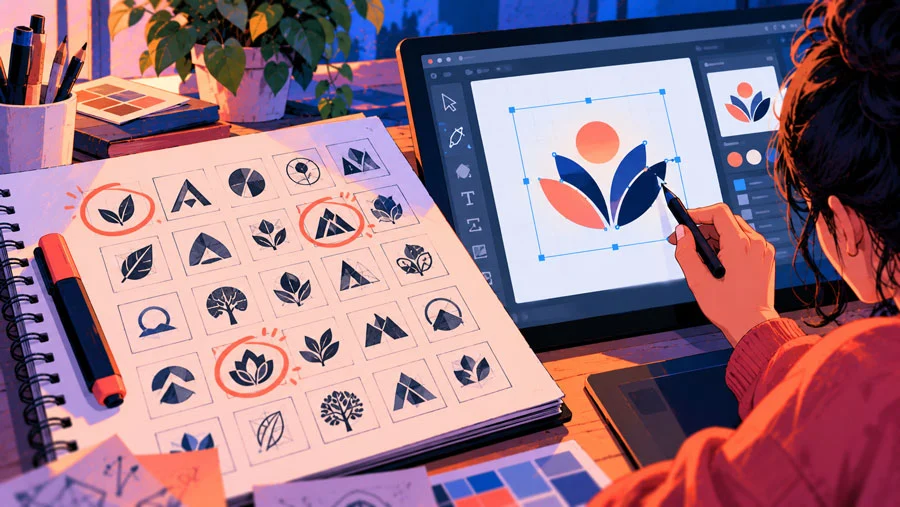
Before opening Illustrator, students fill a page with at least 20 small logo thumbnails, each about the size of a stamp. They circle three, scan them and trace the best one with the Pen tool. Because they have already explored many directions, they spend their screen time refining one idea rather than hunting for one.
2D Animation: Pencil Tests

In animation, the paper stage is the pencil test. Students draw key poses and a rough timing chart by hand, flip through the pages to check the motion and only then recreate the sequence in software. Problems with timing show up quickly when you can flip the pages with your thumb.
Digital Marketing: Paper Wireframes

For social posts and landing pages, students sketch the layout on paper first: where the headline goes, where the image sits, where the button belongs. They test the idea with a classmate before building it in Photoshop or Canva. Fixing a layout on paper takes a minute. Fixing it after hours of design takes much longer.
Setting Up Your Two Stations

If you want the short version of the two-station idea, see Post 2. Here are the practical details.
Your Analog Starter Kit

You don’t need to spend much. Start with:
- A plain notebook or a pad of cheap paper (cheap paper encourages you to waste it)
- A few pencils, a black pen and one marker
- A highlighter for circling your best ideas
- Sticky notes and index cards for grouping and rearranging
- Scissors and tape for cut-and-paste layouts
Keep it all in one place, ready to use, and keep screens away from it while you work.
Keep Your Digital Station Organized

A tidy digital station makes it easy to move work between paper and screen. A simple folder structure is enough:
- 01_Sketches for scans and photos of your paper work
- 02_Working for files in progress, with version numbers
- 03_Final for exported work
- 04_Graveyard for discarded ideas you might need later
Case Study: A Poster in Five Passes
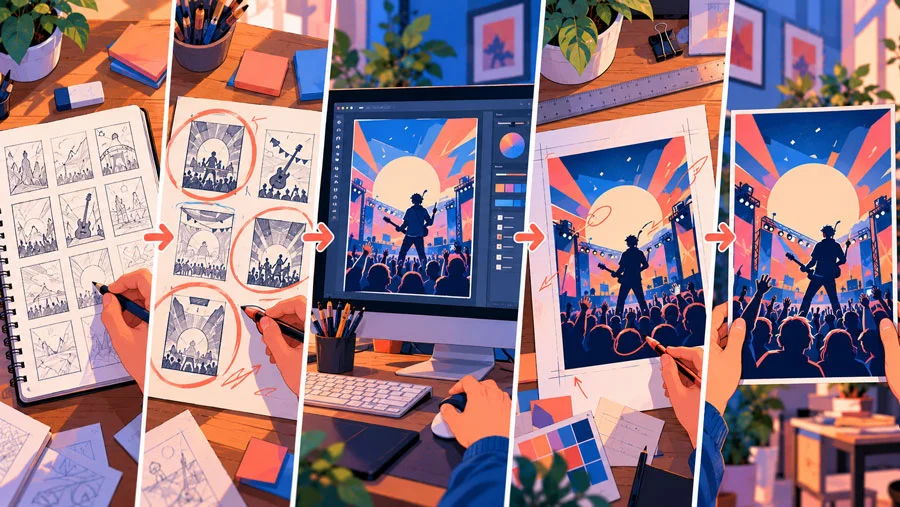
Here is how the loop played out on a recent student poster project.
- Pass 1 (paper, 30 minutes): the student drew 20 thumbnails for a music festival poster.
- Pass 2 (select): she circled three layouts and noted why she liked each.
- Pass 3 (screen): she scanned the best one and rebuilt it in Illustrator.
- Pass 4 (print): she printed it at A3 and marked it up with a pen. On paper, the headline was clearly too small for viewing from a distance.
- Pass 5 (screen): she enlarged the headline, adjusted the spacing and exported the final poster.
The most useful step was the printout. The problem that mattered most was one she hadn’t noticed on screen.
Your One-Week Analog-Digital Experiment

Try the loop for a week and see how it changes your work:
- Day 1: Assemble your starter kit and set up your two stations.
- Day 2: Spend 30 minutes generating rough ideas on paper for a real project.
- Day 3: Select your top three ideas, then scan and organize them.
- Day 4: Build the best idea on screen.
- Day 5: Print it and mark it up by hand.
- Day 6: Apply your changes and finish the piece.
- Day 7: Reflect. Which stage produced your best ideas? Which stage felt slowest? What will you keep?
Frequently Asked Questions

Do I need to give up digital tools?
No. The loop uses both. Paper is for exploring and reviewing, and software is for building and finishing.
Can I use a tablet instead of paper?
Yes, if it helps you sketch freely. Use a simple sketching app, avoid the undo button for 20 minutes, and keep your design software closed until you’ve picked an idea.
How long should the paper stage last?
For small projects, 20 to 30 minutes is enough. For bigger ones, an hour or more. The goal is to explore many ideas quickly, not to make a polished drawing.
Why print my work to review it?
Paper shows scale, spacing and readability in a way screens can hide, and it lets you mark up problems with a pen.
Conclusion: Your Hands Are Not Obsolete

The best creative workflows don’t choose between analog and digital. They use each for what it does best. Paper gives you speed, freedom and a visible trail of ideas. Software gives you precision, polish and the ability to share your work with the world.
Set up both stations, run the loop on your next project, and notice what changes. You may find that the stage you thought was a detour is where your best ideas come from.
Sources & Further Reading
- Austin Kleon, Steal Like an Artist: 10 Things Nobody Told You About Being Creative (Workman Publishing, 2012)
Quotations and anecdotes attributed to John Cleese and Kay Ryan are as cited in Kleon’s book.
Continue Reading
Previous: Blog Post 3, “Write What You Love, Not What You Know.” Basics of the analog and digital workspace: Blog Post 2, “From Copying to Creating.” Next: Blog Post 5 in this series.
About the Author
Lalit M. S. Adhikari is a Digital Nomad and Educator since 2009 in design education, graphic design and animation. He’s taught 500+ students and created 200+ educational articles on design topics. His teaching approach emphasizes clarity, practical application and helping learners.
Learn more about Lalit Adhikari.
Last Updated: Oct 2026