

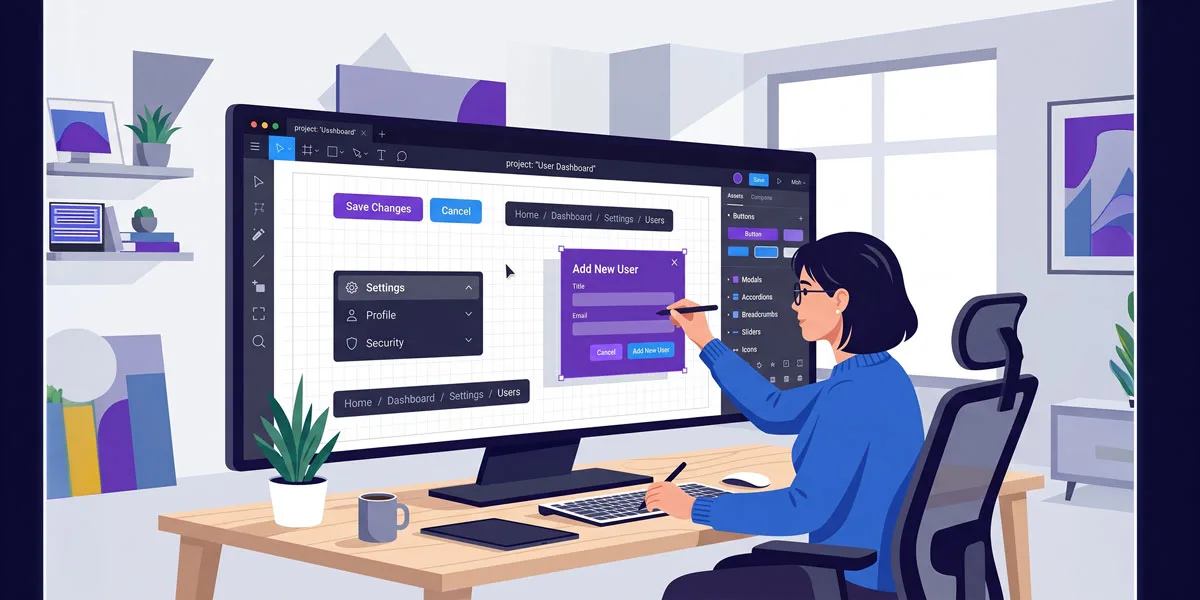
Understanding core UI components is one of the fastest ways to level up as a UI UX designer, because these patterns shape how people move through your product and complete tasks.
In this first part of the UI UX glossary series, we will unpack 20 fundamental UI terms from accordions and breadcrumbs to modals and tooltips, with practical tips, examples, and best practices for real-world projects.
Table of Contents
What are UI terms?
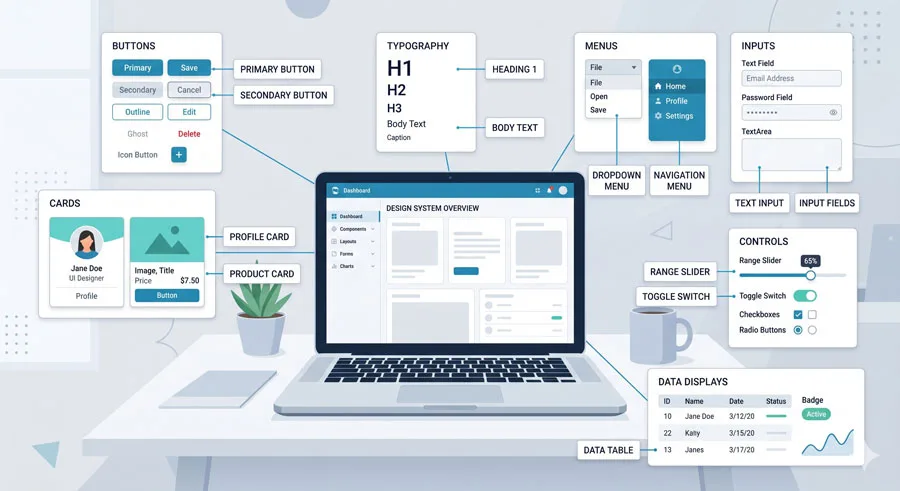
UI terms describe reusable interface components and patterns—like buttons, sliders, accordions, menus and tooltips—that appear across websites and apps.
These components feel familiar to users, reduce cognitive load and help them quickly understand how to navigate layouts and complete tasks.
Related Topics:
Accordions
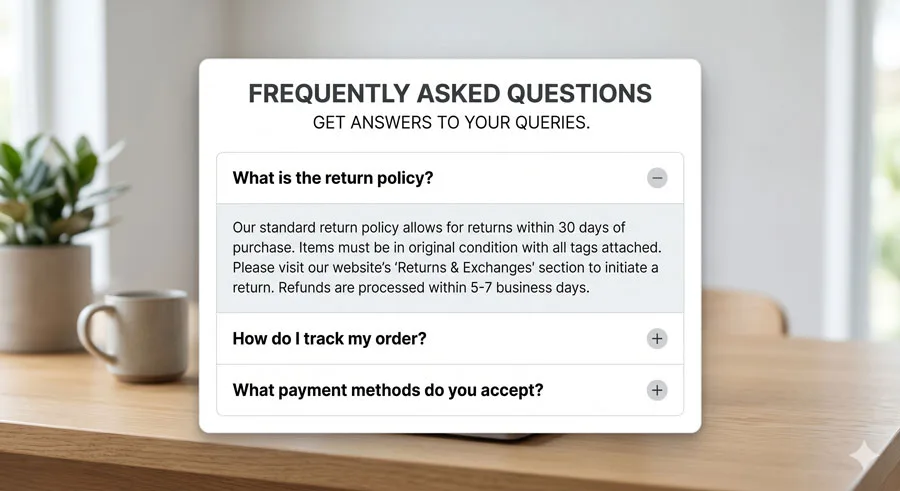
Accordions are vertically stacked sections where only the title or summary is visible by default and the full content is revealed when the user expands a panel.
They are commonly used for FAQs, help sections, settings groups and long content that benefits from being broken into manageable chunks.
Good accordion design keeps titles short and descriptive, clearly indicates open vs closed states and ensures that expanding and collapsing sections feels smooth and predictable.
Use different icons (for example plus/minus, chevron up/down, or caret icons) and subtle animation so users always know which section is active.
Breadcrumbs

Breadcrumbs are a secondary navigation pattern that shows users where they are in a hierarchy, typically as a horizontal trail of links like Home › Shop › Shoes › Sneakers.
They mirror the idea from the Hansel and Gretel story—leaving a breadcrumb trail—so users can easily navigate back to higher-level pages without relying solely on the browser back button.
Effective breadcrumbs always place the current page as the last, non-clickable item in the trail, use clear separators such as chevrons or arrows, and stay consistent across similar sections of a product.
They are especially useful in e‑commerce, dashboards with nested sections and content-heavy sites with deep information architecture.
Pagination
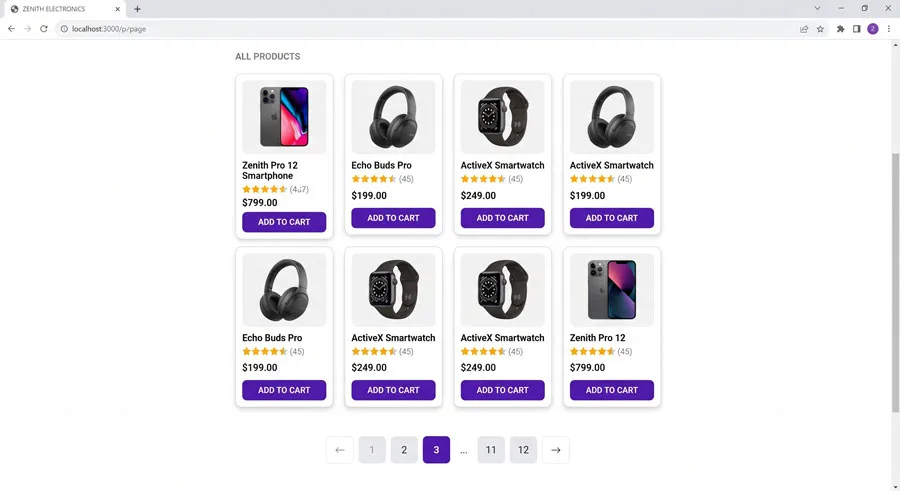
Pagination splits large sets of content—such as article lists, search results, or product grids—into discrete pages with navigation controls, usually arrows and numbers (for example « 1 2 3 4 5 »).
It is a fundamental information architecture pattern that prevents overwhelming users with endless content while still giving them a sense of progress and position.
Place pagination at the bottom (and sometimes also at the top) of long lists so users can move forward or backward without excessive scrolling.
Keep the visible range of pages small, highlight the current page and use clear hover and active states for accessibility.
Tags / Chips
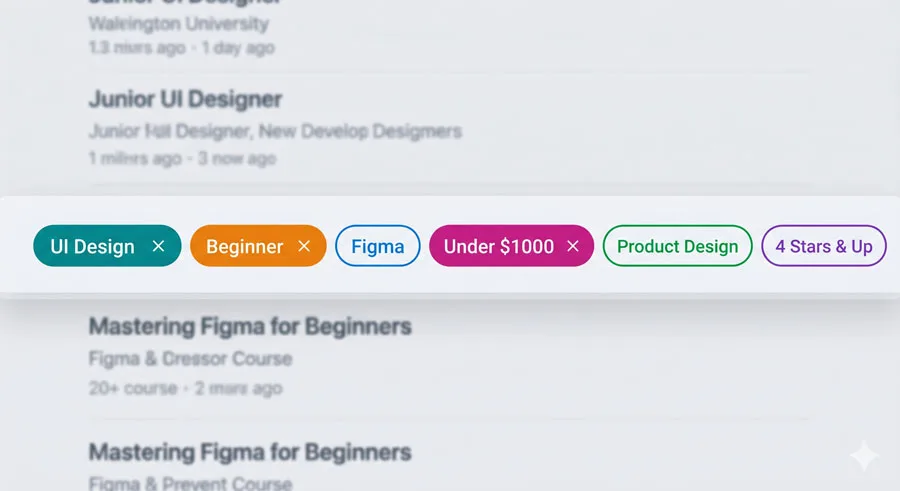
Tags or chips are compact text elements used to label, categorize, filter or trigger small actions—for example, price filters, selected interests or applied search filters.
They help condense information into small, quick-to-scan units that work particularly well on mobile where screen real estate is tight.
Design tags with good padding, pill-shaped or rounded rectangles and clear hierarchy between selected, unselected and disabled states.
Include a clear close or remove icon for removable chips so users can quickly edit or reset their selections.
Progress trackers
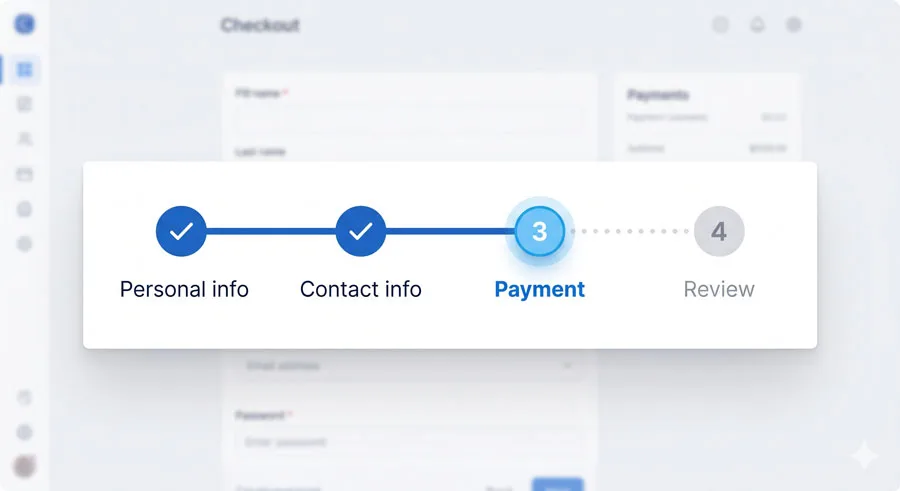
Progress trackers visualize multi-step journeys, such as sign-up flows, checkout processes, onboarding or long forms, by showing completed steps, the current step and upcoming steps.
They reduce uncertainty by making users aware of how far they have come and how many steps remain in the journey.
Keep step labels short, group logically related actions, and avoid flows with more than around five to seven steps to respect Miller’s law and reduce cognitive load.
Use both color and iconography (such as checkmarks or step numbers) to improve clarity, and always ensure the current step is obvious.
Buttons
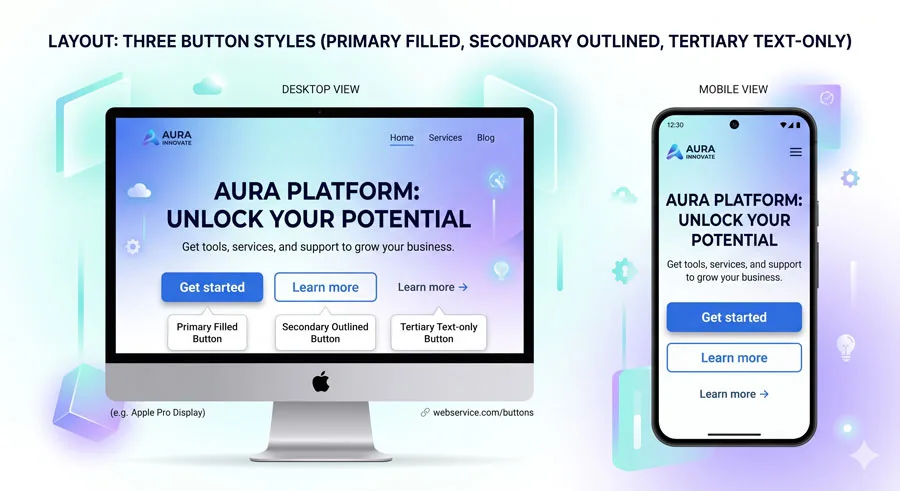
Buttons are primary action triggers in an interface and should clearly communicate what will happen when they are clicked or tapped.
The label is just as important as the visual style: strong action verbs like “Sign up”, “Download file” or “Add to cart” create clarity and reduce hesitation.
Use the imperative form in active voice, keep labels short and leverage hierarchy with primary, secondary and tertiary button styles.
Make sure buttons are large enough on touch devices, meet contrast ratios for accessibility, and have clear hover, focus and pressed states.
Checkboxes
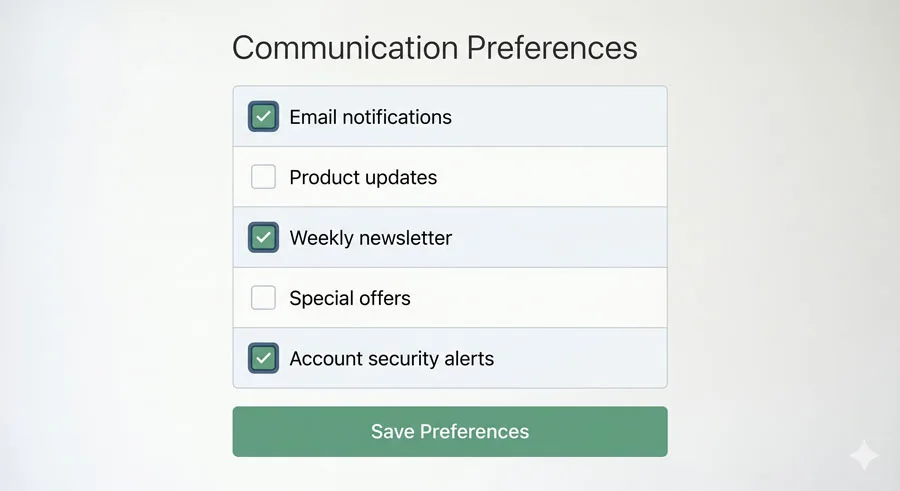
Checkboxes allow users to select one or more options independently, often used in settings, filters, consent forms, or multi-select lists.
Unlike radio buttons, each checkbox is independent, so users can toggle them on or off without affecting other options in the group.
Use checkboxes when multiple selections are possible—for example, choosing multiple product categories or toppings on a food-ordering app—and clearly separate groups with descriptive labels.
Make sure hit areas are large enough for comfortable tapping and pair every checkbox with a clear, readable label to improve accessibility.
Radio buttons
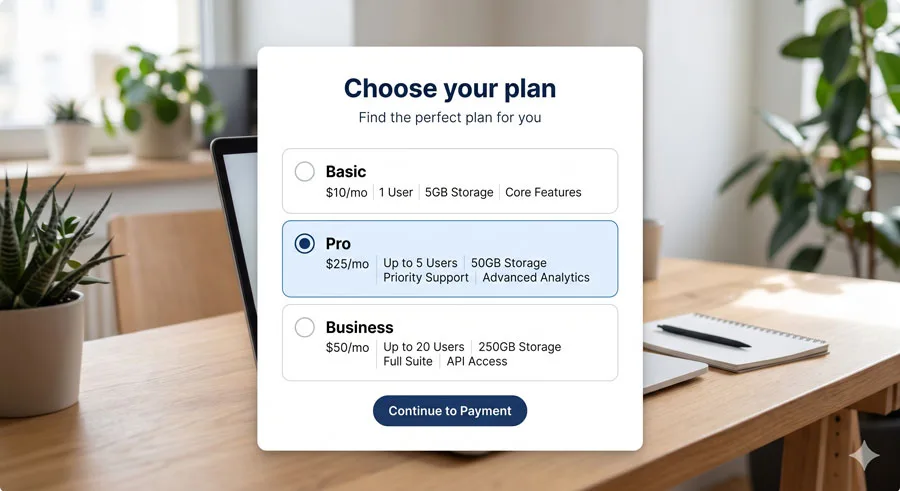
Radio buttons present a set of mutually exclusive options where users can select only one choice from a group, such as Yes/No, monthly/yearly billing or plan tiers.
They get their name from physical radio controls that could only have one station button pressed at a time.
Use radio buttons when exactly one option must be active and ensure that the group has a clear legend or question so users immediately understand what they are choosing.
Space options generously to avoid mis-taps and make selected states visually distinct with filled circles and bold labels.
Toggle switches
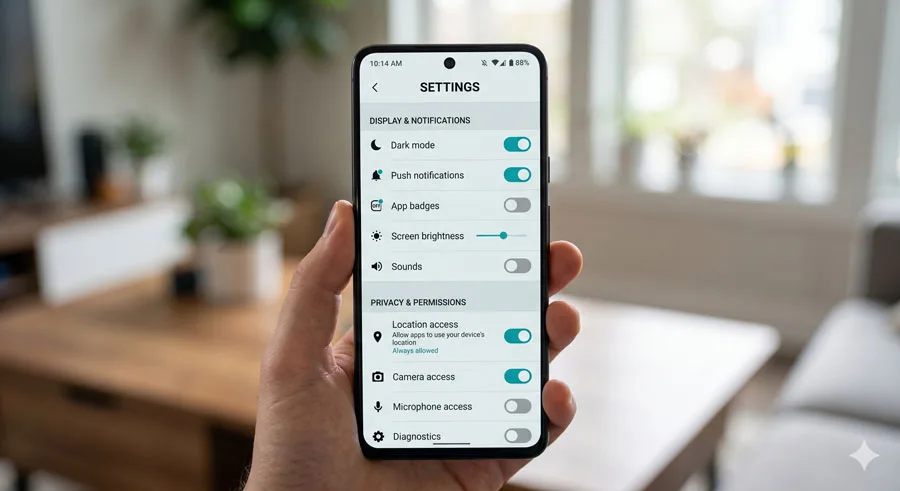
Toggle switches allow users to switch between two opposite states—commonly on/off, enable/disable or show/hide—often used in settings screens.
They are best suited for immediate, binary changes where users can understand the impact right away.
Ensure that the on and off states are visually distinct using both color and position and accompany them with clear labels so the function of the switch is never ambiguous.
Avoid using toggles for complex or destructive actions that require confirmation; in those cases, buttons or dialogs are safer.
Forms
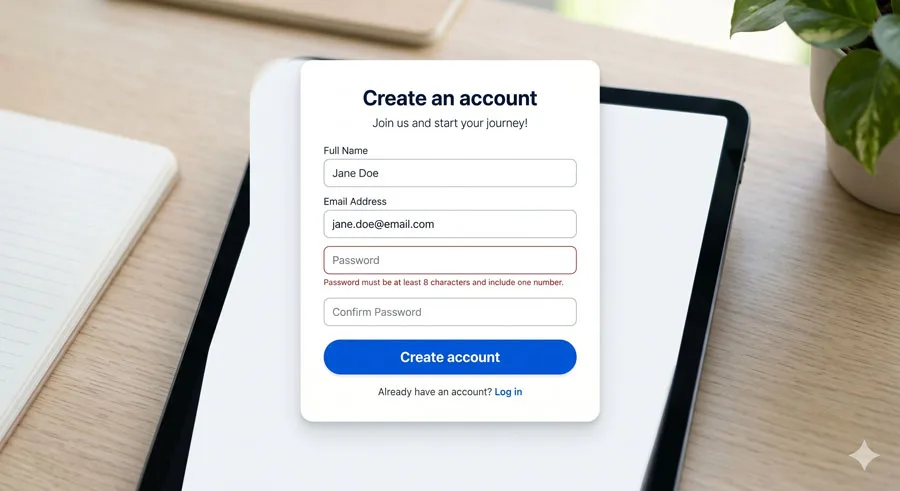
Forms are collections of input fields that capture user data for tasks such as sign-up, checkout, contact requests or profile creation, making them one of the most critical UI components for business goals.
Well-designed forms balance the amount of information collected with user effort and can dramatically improve or harm conversion rates.
Reduce friction by asking only for essential information, grouping related fields logically, and providing clear validation messages and inline guidance.
Design error states that help users recover quickly and use progressive disclosure for optional or advanced fields.
Text inputs
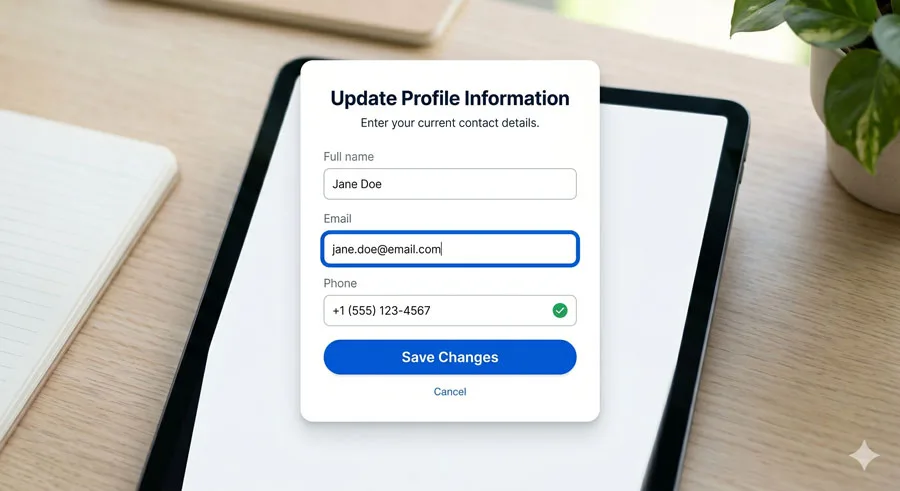
Text input fields let users type freeform information such as names, email addresses, search queries or addresses.
They are the most common form input type and can be configured for specific data formats like telephone, email or password for better usability.
Use clear labels (not just placeholders), show examples or input masks when needed and enable appropriate keyboards and validation on mobile devices.
Provide enough padding and line height for comfortable reading and ensure focus states are clearly visible.
Artboards / Frames
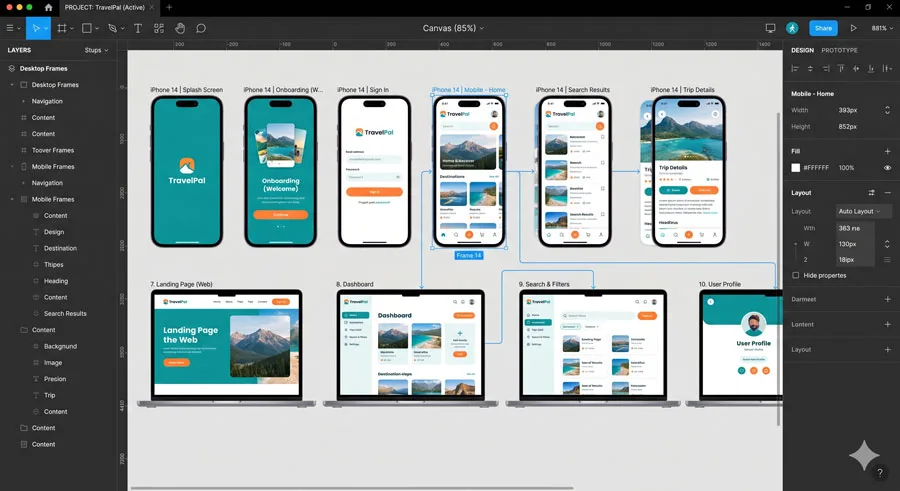
Artboards or frames are design canvases inside tools like Figma, Sketch, Adobe XD, or similar applications that represent individual screens or states of an interface.
They allow designers to organize layouts for different devices, flows, and breakpoints while keeping everything within a single design file.
In Figma, the term “Frame” is used instead of “Artboard”, but the concept is the same: a parent container that holds layers, components, and layout grids.
Using consistent frame sizes and naming conventions makes handoff to developers and collaboration with teams far smoother.
Hamburger menu
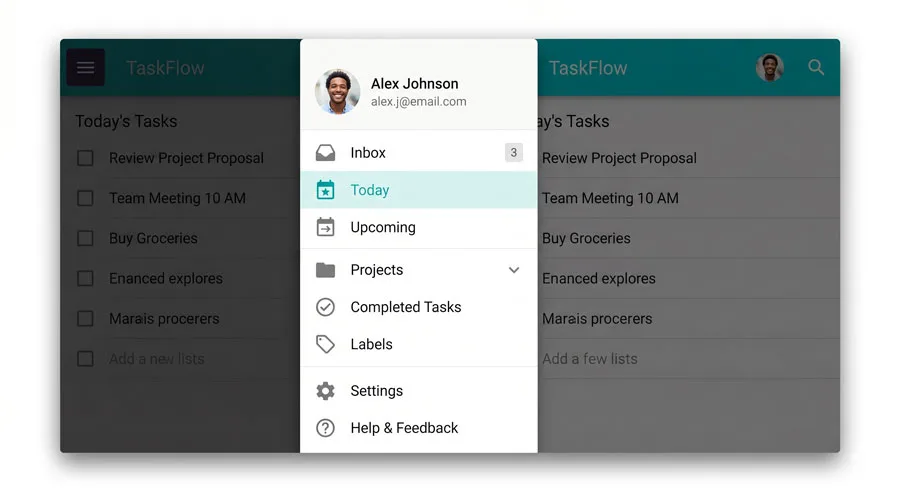
The hamburger menu icon—a stack of three horizontal lines—represents a collapsed navigation drawer that expands to reveal navigation links or options.
It saves space in compact layouts, especially on mobile, by hiding secondary or less frequently used navigation items until needed.
Use hamburger menus carefully: keep primary actions accessible without hiding them, and provide clear entrance and exit animations when the menu opens or closes.
Consider combining the icon with a label like “Menu” to improve discoverability for less experienced users.
Hyperlinks
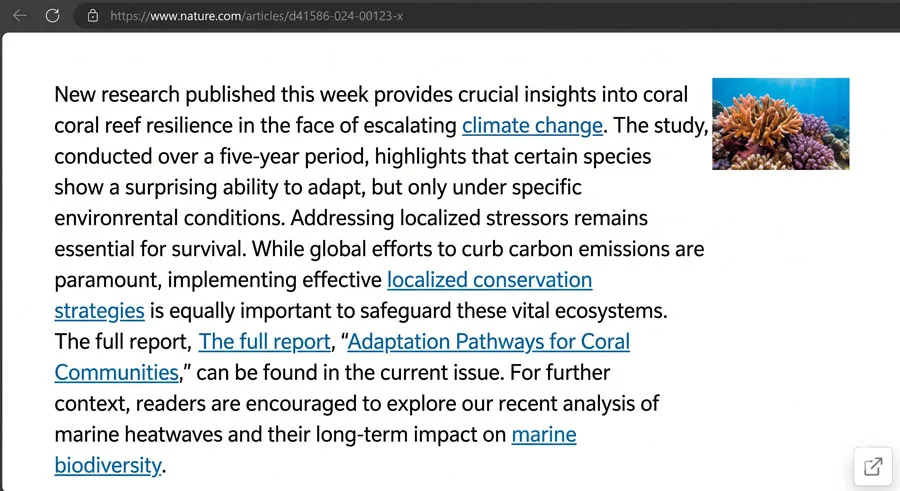
Hyperlinks are clickable elements—often styled as underlined or colored text—that take users from one location to another, either within the same page or to a different page or site.
Unlike a raw URL, a hyperlink wraps descriptive anchor text or visuals like buttons or images, improving clarity and readability.
Make sure link text describes the destination (“View pricing”, “Download guide”) rather than generic phrases like “Click here”, and differentiate visited vs unvisited states when appropriate.
Ensure links have sufficient contrast and large enough hit areas for accessibility.
Menus
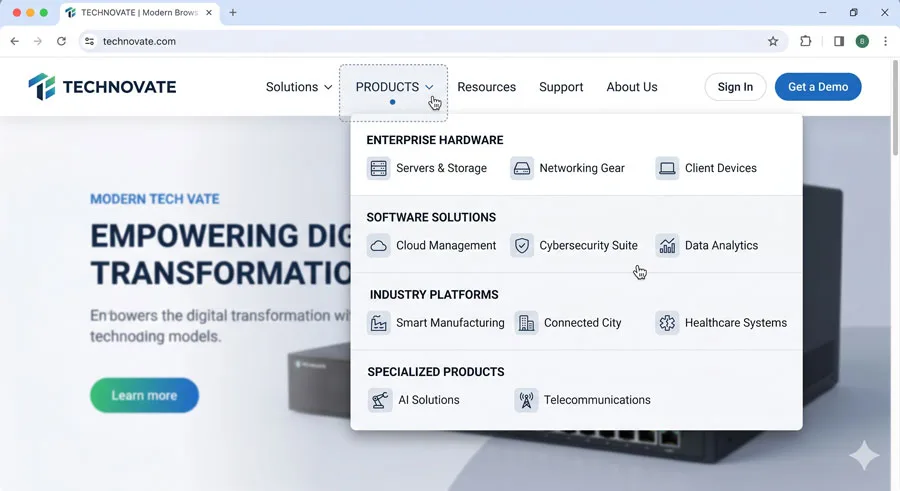
Menus are lists of options or actions that appear when users click, tap or hover on a trigger such as a button, icon, or text label.
They are used for navigation (like navigation bars or dropdown menus) and contextual actions (like right-click menus with actions specific to a selected item).
A good menu reveals the right amount of options without overwhelming users, groups related actions with separators or headings and closes predictably when users click outside or select an item.
Ensure menus are keyboard accessible and that focus stays within the menu until an option is selected or it is dismissed.
Sliders
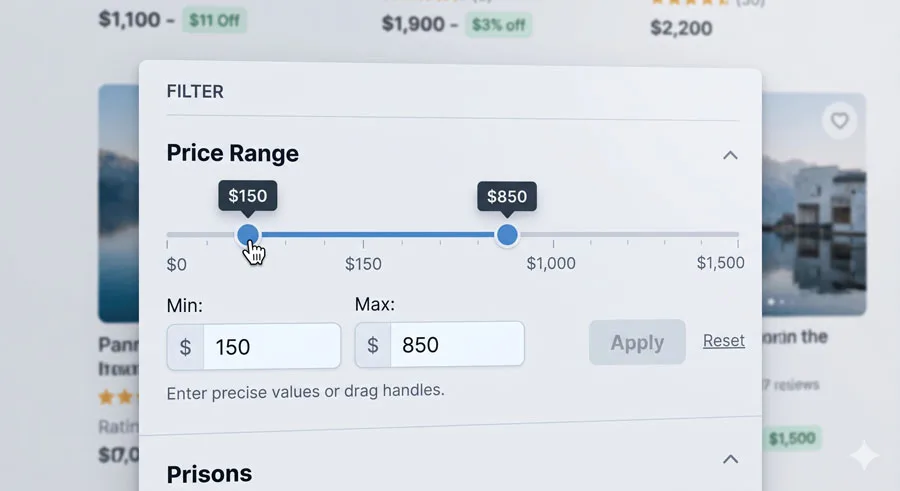
Sliders allow users to select a value or range of values by dragging a handle (thumb) along a track, for example choosing a price range, volume level, or date range.
They give a quick visual sense of magnitude and can be more engaging than typing numbers, but they require careful design for precision and accessibility.
Avoid sliders for precise input like credit card numbers or account IDs and always pair them with numeric labels or value displays so users know exactly what they have selected.
Make sure thumb targets are large enough for touch devices and that the track contrast is sufficient.
Loaders

Loaders are visual indicators—such as spinners, skeleton screens, or progress bars—that show users something is happening in the background while they wait.
They help reduce frustration during network or processing delays by making progress visible and acknowledging that the system is working.
To further reduce anxiety, pair loaders with short explanations of what is happening (“Syncing your data…”) and, when possible, approximate timings or percentage completion.
Skeleton screens that resemble the final layout can also give users a better sense of what to expect.
Modals
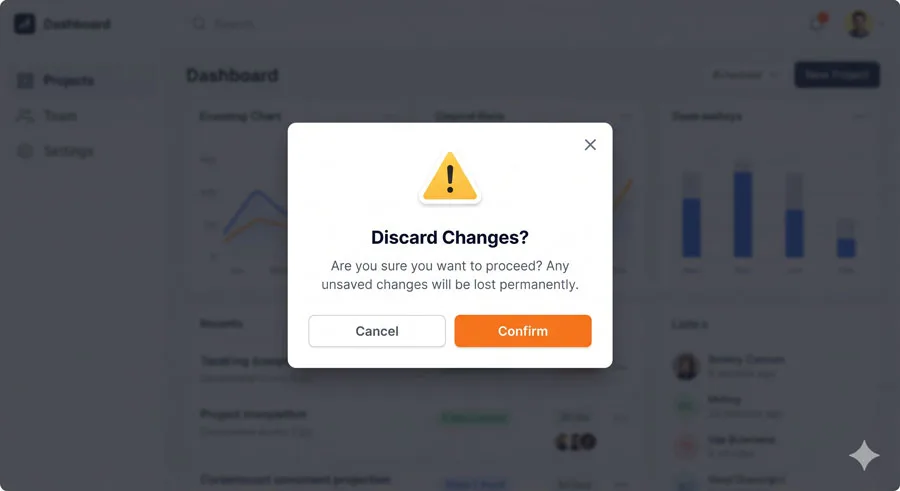
Modals are overlay windows that sit on top of the current interface and temporarily disable interaction with the underlying content until they are dismissed.
They are often used for confirmations, critical alerts, forms, or focused tasks where the user’s full attention is required.
Because modals interrupt the current flow, use them sparingly and only when the benefit outweighs the cost of interruption—for example, confirming destructive actions or showing important warnings.
Always provide a clear close mechanism, manage focus correctly, and avoid stacking multiple modals.
Cursors
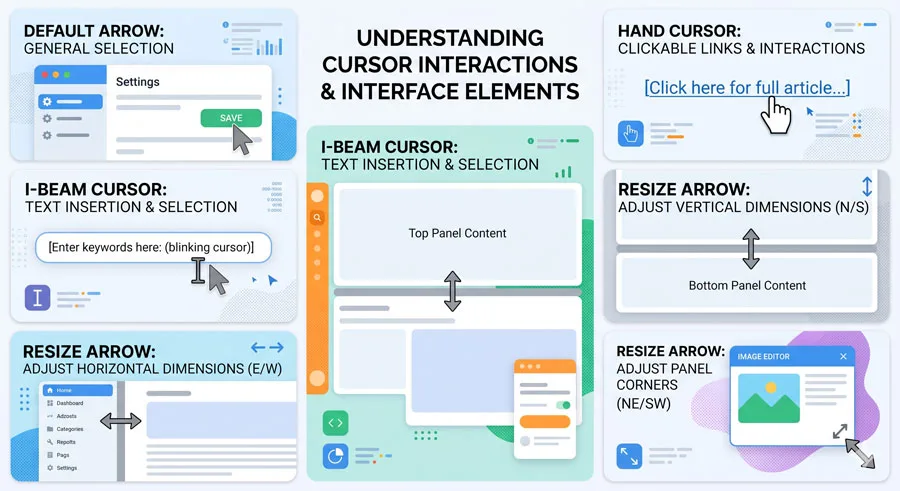
Cursors are visual indicators that show users how their mouse pointer or similar device will interact with interface elements—such as arrow pointers, text selection (I‑beam), resize handles, and hand pointers for clickable items.
Different cursor shapes provide immediate feedback about what actions are possible (for example, dragging, selecting text, or following a link).
Use cursor changes consistently: show a pointer/hand on clickable elements, I‑beam for text fields, and resize arrows on draggable edges.
This subtle feedback improves the learnability and usability of interfaces, especially in complex web apps and design tools.
Tooltips
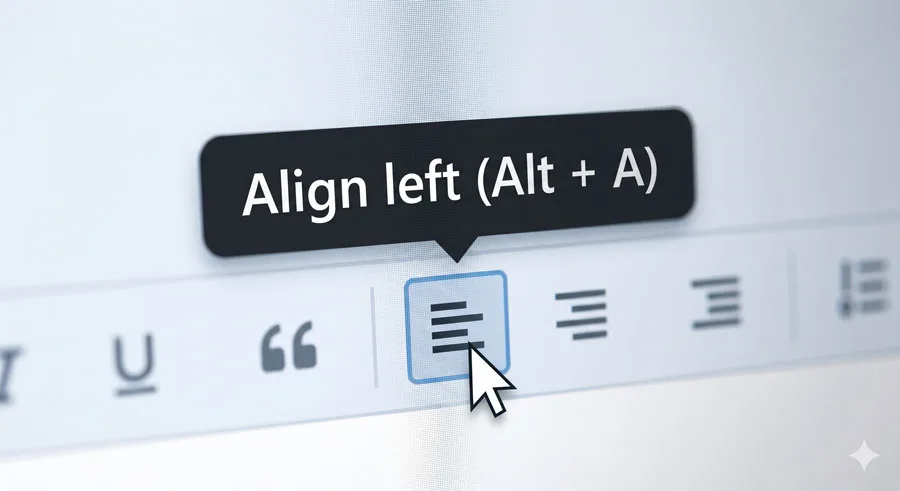
Tooltips are small, contextual popups that appear when users hover or focus on an element, providing short explanations, labels, or shortcuts without permanently taking up space.
They are often used to clarify unfamiliar icons, explain keyboard shortcuts, or expand on truncated labels.
Great tooltips are short, specific, and triggered at the right time; they should enhance understanding, not clutter the interface.
Use them to gently teach advanced functionality, but avoid relying on them to fix unclear core design choices.
How to learn and practice these UI terms
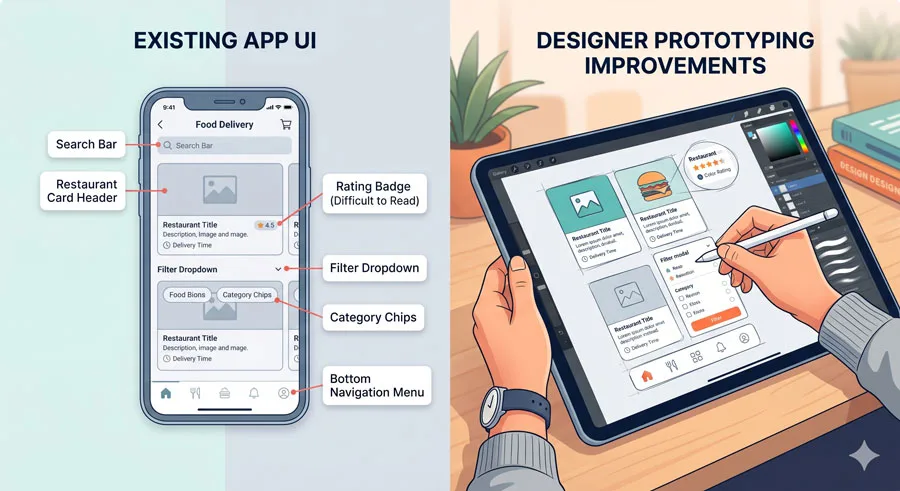
Reading definitions is a good start, but you will internalize these UI patterns much faster by spotting them in real products and recreating them in your design tool.
Pick a product you use daily, screenshot a key screen, and annotate where each of these UI components appears, then redesign the screen by improving labels, spacing, and accessibility.
About the Author
Lalit M. S. Adhikari is a Digital Nomad and Educator since 2009 in design education, graphic design and animation. He’s taught 500+ students and created 200+ educational articles on design topics. His teaching approach emphasizes clarity, practical application and helping learners.
Learn more about Lalit Adhikari.
This guide is regularly updated with the latest information about Adobe tools and design best practices. Last Updated: July 2026