



User experience design is built on a foundation of psychology, behaviour, accessibility and patterns that have been observed and validated across thousands of products.
In this second part of the UI UX glossary series, we will go through 25 essential UX terms—from WCAG to Hick’s Law, social proof and the Zeigarnik effect—and translate them into concrete design decisions you can apply immediately.
My name is Lalit Adhikari and we are at LTY. Let’s begin!
Table of Contents
Why UX terms and laws matter
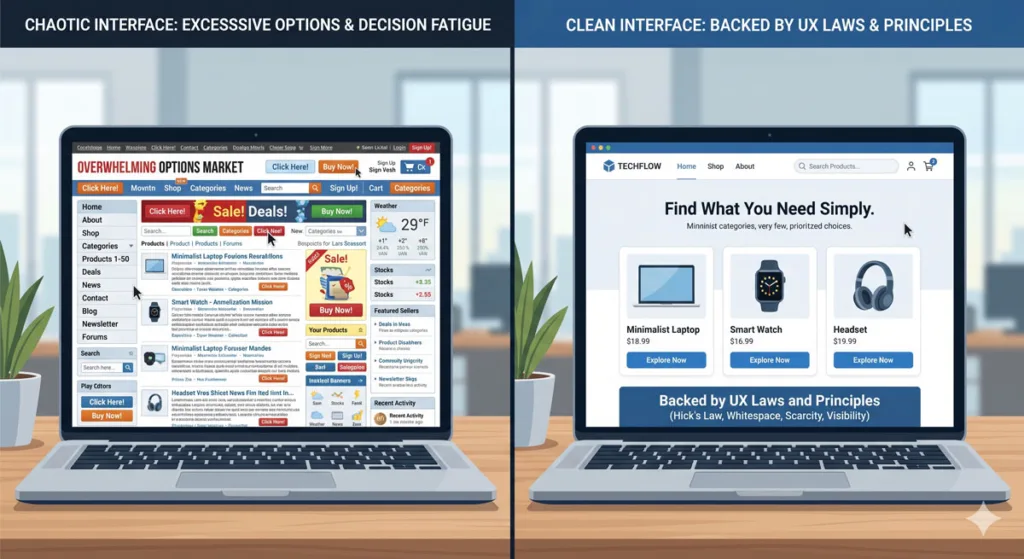
UX terms and laws turn vague ideas like “this feels confusing” into concrete language the whole product team can understand and act on.
When you can name a principle—like Miller’s Law or the Peak‑End Rule—you can justify design choices with research-backed reasoning rather than personal preference.
WCAG (Web Content Accessibility Guidelines)

WCAG stands for Web Content Accessibility Guidelines, a globally recognized standard that helps teams make web content accessible to people with a wide range of disabilities.
The guidelines are organized under four core principles: content must be perceivable, operable, understandable, and robust so that assistive technologies can interpret and present it correctly.
As a UX designer, you do not need to memorize every success criterion, but you should be familiar with basics like colour contrast ratios, keyboard navigation, alternative text for images, and clear error handling.
Accessible design expands your audience, reduces legal risk, and often improves clarity for all users, not just those with disabilities.
Hick’s Law

Hick’s Law states that the time it takes for a user to make a decision increases with the number and complexity of choices presented.
Too many options, cluttered navigation, or overloaded menus slow people down and increase decision fatigue, especially on small screens.
Use Hick’s Law to justify simplifying navigation, grouping options into logical categories, and progressively disclosing advanced features only when users need them.
In practice, that might mean turning a long list of filters into a few high-level groups, or breaking a complex settings page into clearly labelled sections.
Fitts’s Law
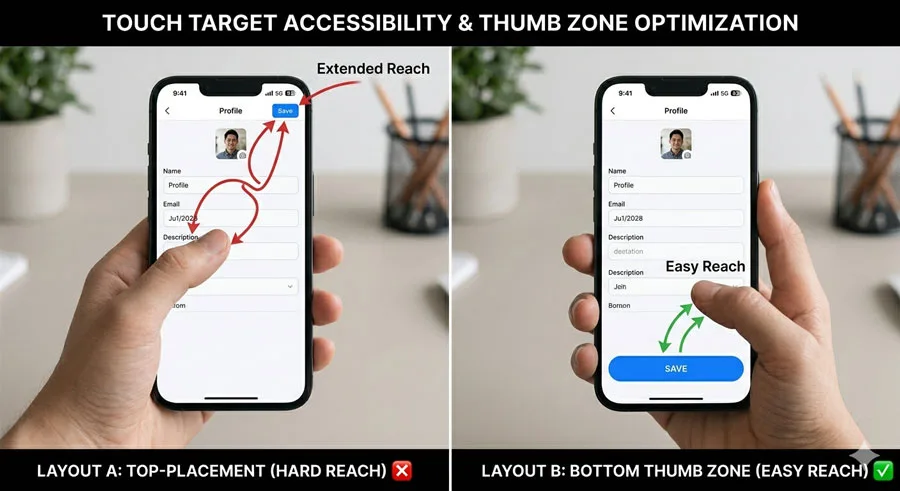
Fitts’s Law explains that the time required to move to and activate a target is a function of the distance to the target and its size.
In UI terms, large, easily reachable targets are faster and easier to interact with than small or far-away ones, especially on touch devices.
Use Fitts’s Law to justify making primary buttons larger, placing key actions in thumb-friendly zones on mobile, and avoiding tiny tappable areas packed close together.
Placing important actions near the bottom of the screen on mobile, or near where the cursor naturally rests on desktop, can significantly speed up workflows.
Miller’s Law
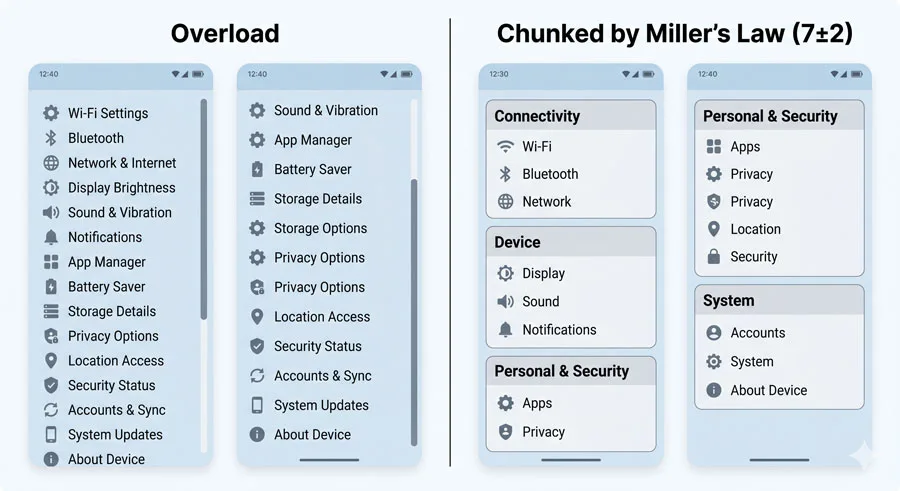
Miller’s Law suggests that the average person can keep around seven (plus or minus two) items in their working memory at once.
In UX, this means that long flat lists, deeply nested menus, or dense forms can easily overload users and lead to confusion or abandonment.
Apply Miller’s Law by grouping related settings, chunking long processes into steps, and limiting the number of visible choices in any one view.
Instead of a single page with 20 toggles, for example, consider grouping them into 3–4 clear categories with descriptive headings.
The 3‑Click Rule
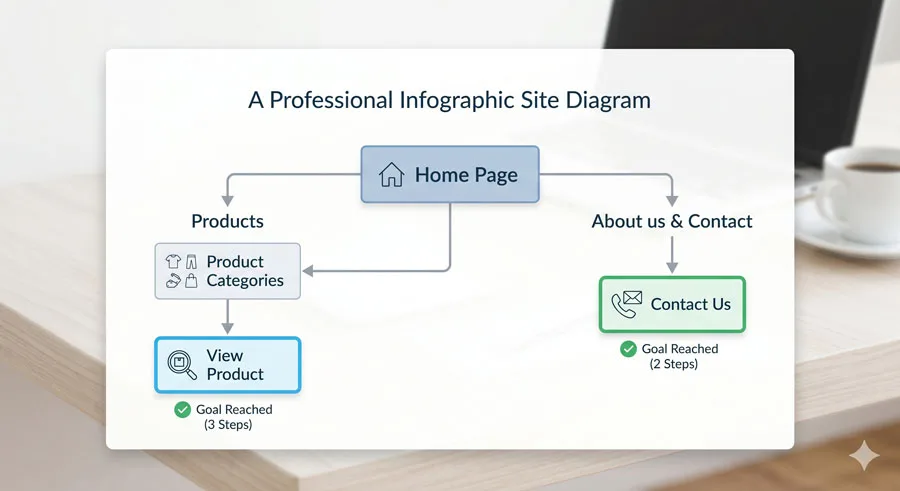
The 3‑click rule is an informal heuristic that says users may abandon a website if they cannot complete their task within about three clicks.
While it is not a strict scientific law, it captures an important idea: deep, confusing navigation makes it harder for users to reach their goals.
Use the rule as a prompt to review your information architecture, prune unnecessary levels in navigation, and bring critical tasks closer to the home page.
Card sorting, tree testing, and analytics on click paths can show where users are getting lost.
The 5‑Second Test

A 5‑second test is a quick research method where users view an interface for five seconds and then answer questions like “What was this page about?” or “What action would you take next?”.
It helps you evaluate first impressions, clarity of hierarchy, and whether the main purpose of the page is immediately obvious.
Run 5‑second tests on landing pages, dashboards, and onboarding screens to ensure that headlines, primary actions, and value propositions stand out. If users cannot describe what the page does after five seconds, reorganize your layout, simplify copy, and strengthen visual hierarchy.
Priming Effect
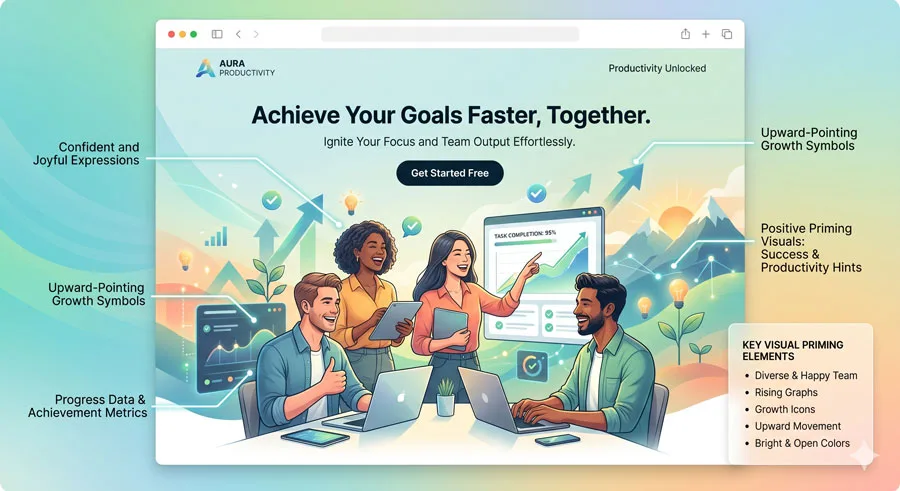
Priming is a psychological effect where exposure to one stimulus influences how people respond to a later, possibly unrelated stimulus.
In UX, imagery, copy, and examples can prime users to expect certain outcomes, emotions, or behaviours before they start interacting.
Use priming ethically by choosing photos, videos, and microscopy that reinforce the main value of your product—such as showing people successfully using the product to achieve their goals.
Be cautious with dark patterns that rely on fear or guilt; they may work short term but damage trust over time.
Cognitive Load

Cognitive load is the mental effort required for a user to understand and operate an interface.
High cognitive load—too many choices, unfamiliar patterns, or unclear feedback—makes products feel “hard to use” even if they are visually polished.
Reduce cognitive load by prioritizing content, simplifying labels, using familiar patterns, and avoiding unnecessary decorations that do not support the task.
Progressive disclosure, clear feedback, and consistent layouts all help users build reliable expectations.
Aesthetic and Minimalist Design
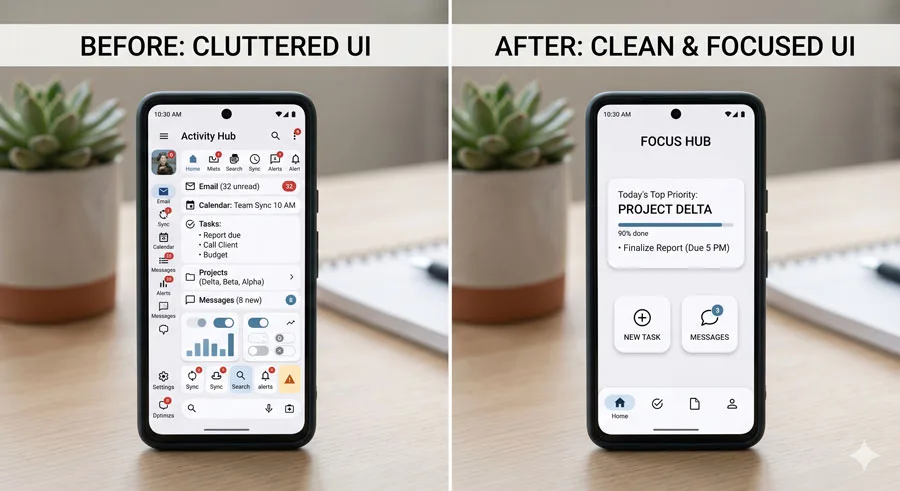
The aesthetic and minimalist design principle advises that interfaces should not contain irrelevant information or elements that do not add value to the user’s task.
Every extra visual element competes for attention and can make it harder to focus on what matters most.
Apply this principle by removing unnecessary borders, shadows, and decorative graphics, and by cutting copy that does not help users make decisions.
Keep typography, colour, and spacing consistent so that visual hierarchy, not visual noise, guides the eye.
Progressive Disclosure

Progressive disclosure is the practice of revealing information and options gradually, starting with the most important and deferring advanced or rare features to secondary screens.
It makes complex products easier to learn while still offering power and flexibility for advanced users.
Use progressive disclosure for advanced settings, filters, or expert controls—hide them behind “More options” links, accordions, or separate tabs so beginners are not overwhelmed.
Validate your approach with usability tests that measure time on task, error rates, and satisfaction.
Investment Loops
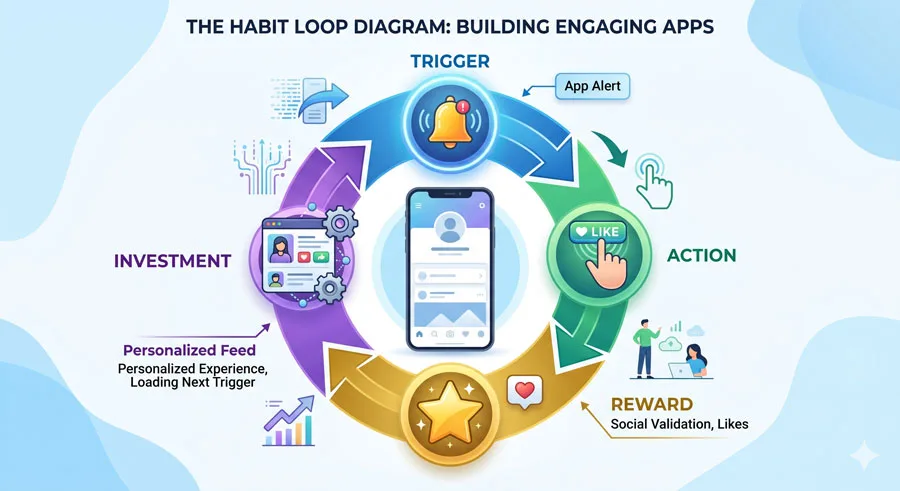
Investment loops describe habit‑forming product patterns where each user action leads to a reward and a small “investment” that makes the product more valuable next time.
Over time, the cycle of trigger, action, reward, and investment creates stronger engagement and stickiness.
For example, when users save favourites, customize playlists, or follow topics, they are investing effort that makes returning to the product more appealing.
Use this principle to design gentle prompts to personalize experiences, but always give users control over their data and notifications.
Social Proof

Social proof is the phenomenon where people look to the behaviour and opinions of others to guide their own decisions.
In digital products, this appears as reviews, ratings, testimonials, usage counts, and “trending” badges.
Display authentic, specific testimonials and ratings near important decisions like pricing pages or checkout.
Consider mixing quantitative signals (star ratings, review counts) with qualitative ones (short quotes, video testimonials) to build trust.
Mental Models
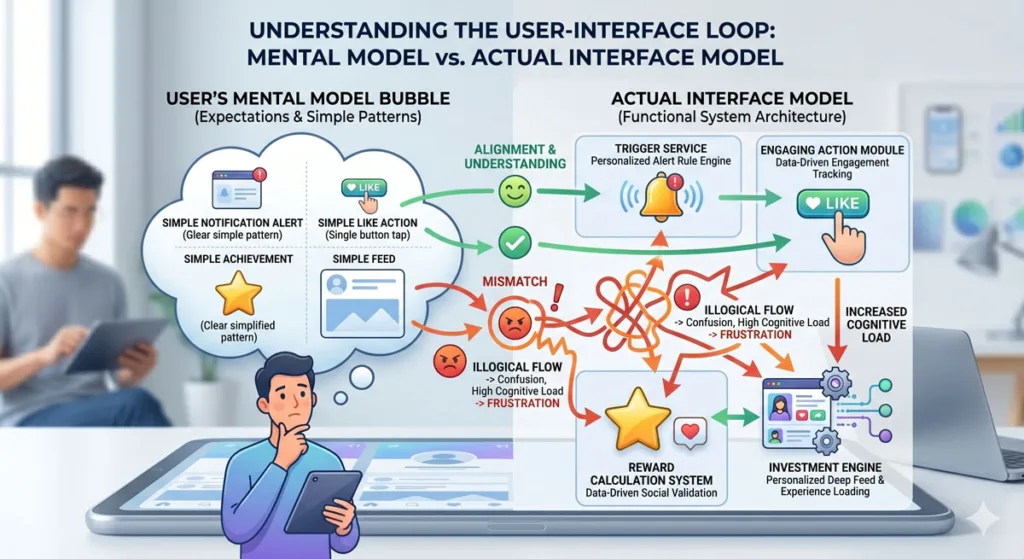
Mental models are the internal representations users have about how something works based on their past experiences.
When an interface matches users’ mental models, it feels intuitive; when it does not, interaction costs rise and users become frustrated.
Align with existing mental models where possible—such as using familiar cart metaphors for e‑commerce or envelope icons for messaging—and only introduce new patterns when they clearly add value.
Conduct usability tests and beta programs to discover where your design does not align with user expectations.
Curiosity Gap
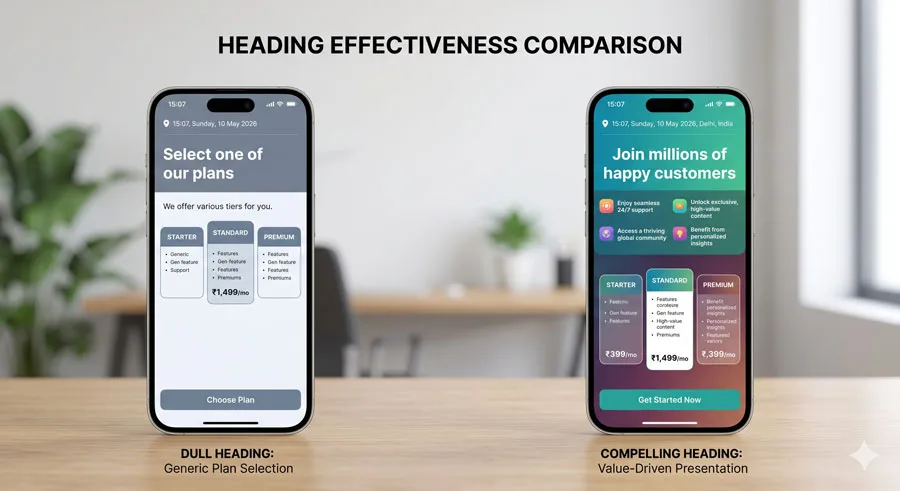
The curiosity gap is the space between what users know now and what they want to know—a tension that motivates them to seek more information.
In UX and content design, carefully crafted headlines, previews, and microcopy can create curiosity without resorting to misleading clickbait.
Use curiosity ethically to guide users towards deeper content or product tours, combining intriguing statements with concrete benefits and reassurance (“Join millions of happy customers”).
People feel safer when you use confident, supportive language like “You can”, “People like you”, and “You’ll be able to…”.
Commitment and Consistency
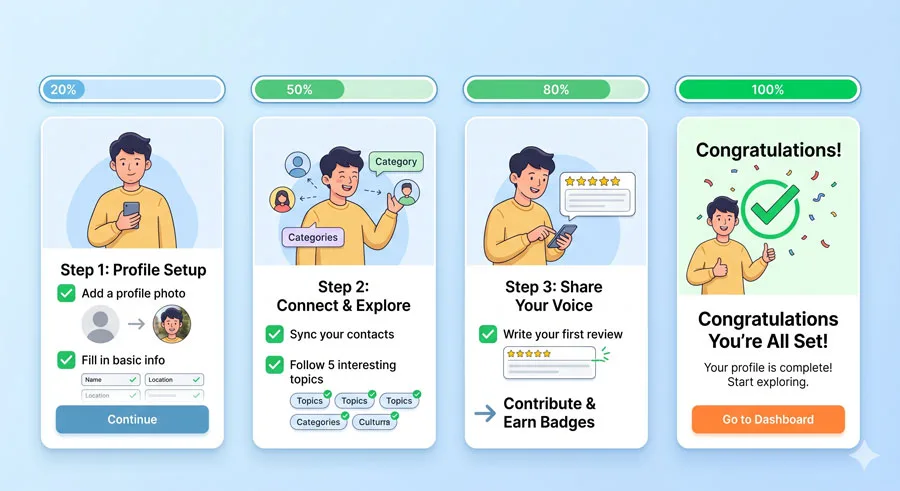
Commitment and consistency describe how people tend to act in ways that are consistent with their previous commitments, even small ones.
In UX, guiding users through small, low‑effort steps can make it easier for them to complete larger tasks later, such as filling out a full profile or writing a review.
Break big tasks into simple steps, celebrate small wins, and gently remind users of previous commitments (like partial profiles or saved drafts) to encourage completion.
Be transparent and give users flexibility to change their minds without penalty.
Exit Points
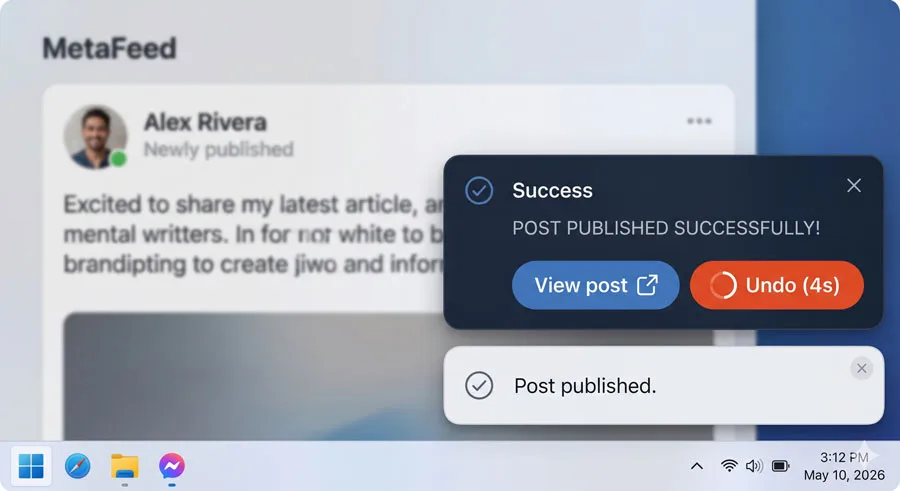
Exit points are the clear ways users can gracefully leave a flow or dismiss a message at an appropriate moment.
Designing good exit points means inviting users to step out at the height of a positive experience instead of trapping them in unnecessary extra steps.
Provide unobtrusive but visible “Undo”, “Skip”, or “Not now” options in flows like posting, sending, or subscribing, and use confirmations to reassure users when tasks complete successfully.
Poorly designed exit points—especially those that appear late or are hard to find—can damage trust and perceived usability.
Peak‑End Rule
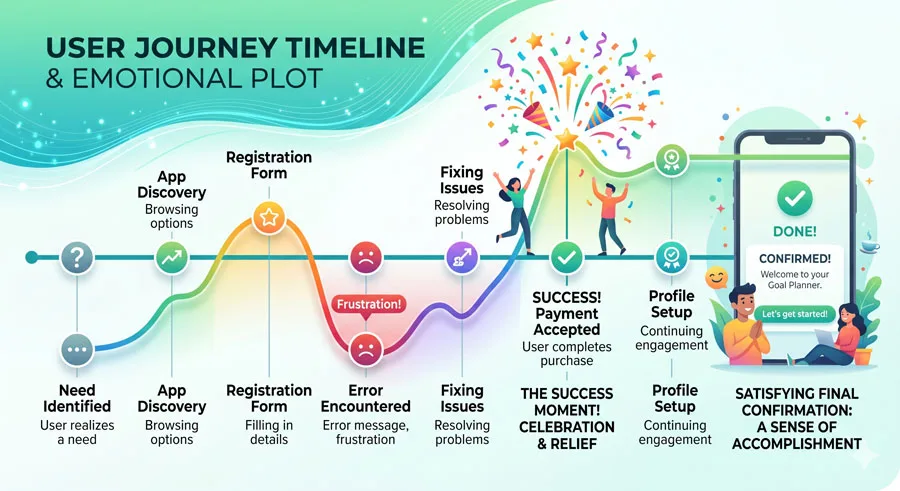
The Peak‑End Rule states that people judge an experience largely based on its most intense moment (the peak) and its ending, rather than every moment equally.
In digital products, frustrating errors at the end of a flow or poor recovery experiences can overshadow an otherwise smooth journey.
Design for strong positive peaks—like delightful micro‑interactions or surprising rewards—and ensure that the end of key flows (onboarding, checkout, support) feels clear, reassuring, and respectful.
Pay particular attention to error states around payments, account access, and critical tasks.
Storytelling Effect
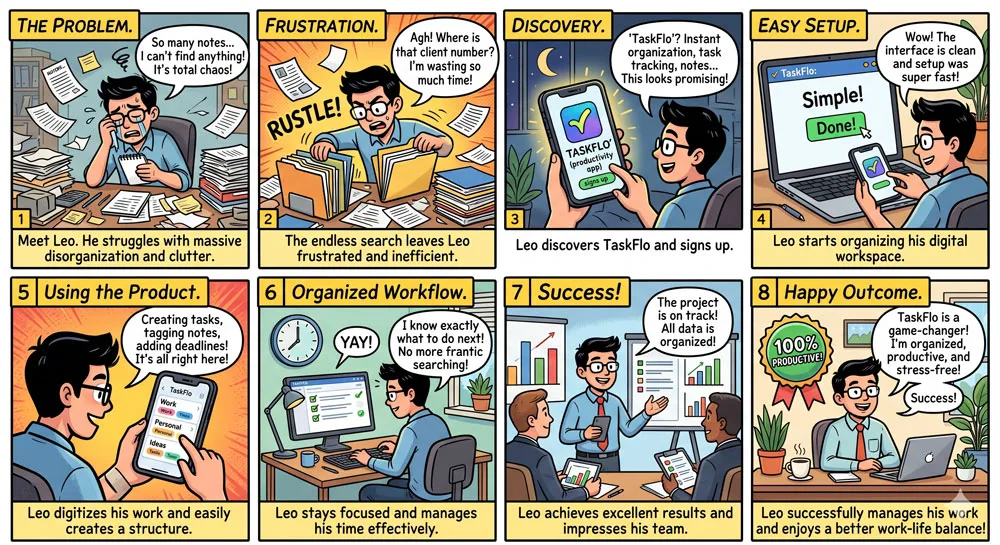
The storytelling effect refers to our natural tendency to make sense of information through narratives and characters, which makes stories more memorable than raw facts.
In UX, storytelling can shape how stakeholders understand user journeys and how users understand the value of a product.
Use story arcs in case studies, onboarding tours, and UX presentations—introduce a character (your user), their problem, the journey, and the resolution your product offers.
User journey maps, service blueprints, and scenario narratives are all tools to harness the storytelling effect.
Zeigarnik Effect

The Zeigarnik effect describes how people are more likely to remember unfinished or interrupted tasks than completed ones.
In product design, this can motivate users to return and complete partially done actions such as profiles, checkouts, or courses.
You can leverage this effect by showing progress bars, “X% complete” badges, or gentle reminders of unfinished content, but it is crucial not to overdo notifications.
Make it easy for users to resume exactly where they left off without having to repeat steps.
Pareto Principle (80/20 Rule)

The Pareto Principle suggests that roughly 80% of effects come from 20% of causes.
In UX and product strategy, this often means a small set of features or user segments creates most of the value or problems.
Use this principle to focus design and optimization efforts on the most impactful parts of your product—key flows, highly used features, or high‑value customers.
UX research and analytics can reveal which 20% of your interface drives most user satisfaction or frustration.
UX Writing

UX writing is the craft of designing the text that appears throughout an interface—labels, buttons, error messages, tooltips, empty states, and more.
Its goal is to guide users intuitively through tasks using clear, concise, and helpful language.
Strong UX writing avoids vague jargon and instead uses specific, actionable messages, especially for errors and validation.
For example, instead of “Wrong password”, you might show which requirements are not met and update the message as the user types.
Gestalt Principles
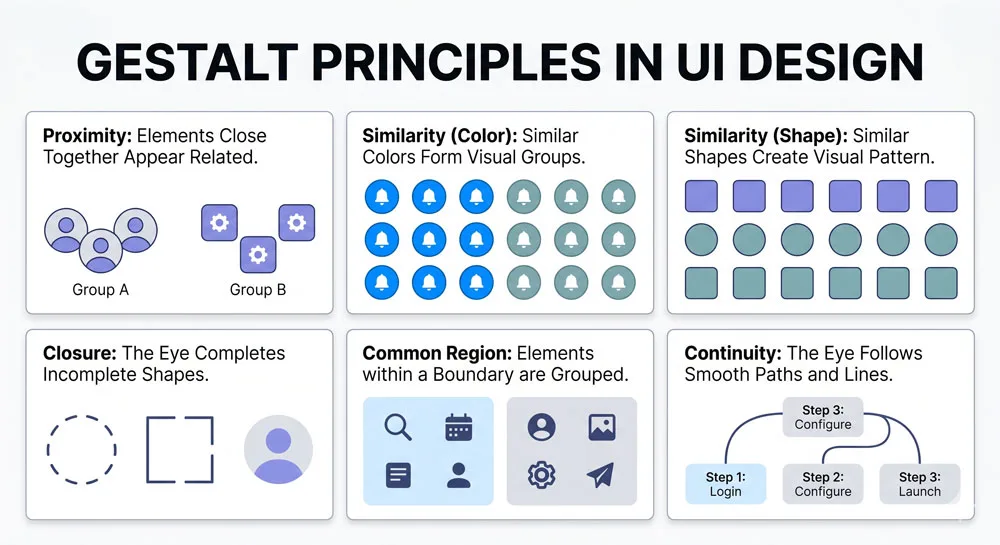
Gestalt principles describe how people visually group elements into unified wholes based on proximity, similarity, continuity, closure, and other perceptual rules.
Even though the original e‑book teases a separate volume for Gestalt concepts, you can already start applying them by aligning, grouping, and visually connecting related items.
For example, placing labels close to their inputs, visually grouping related actions in a toolbar, or using similar colours for related content all rely on Gestalt thinking.
These principles help you build interfaces that “just make sense” at a glance.
How to practice these UX terms in real projects
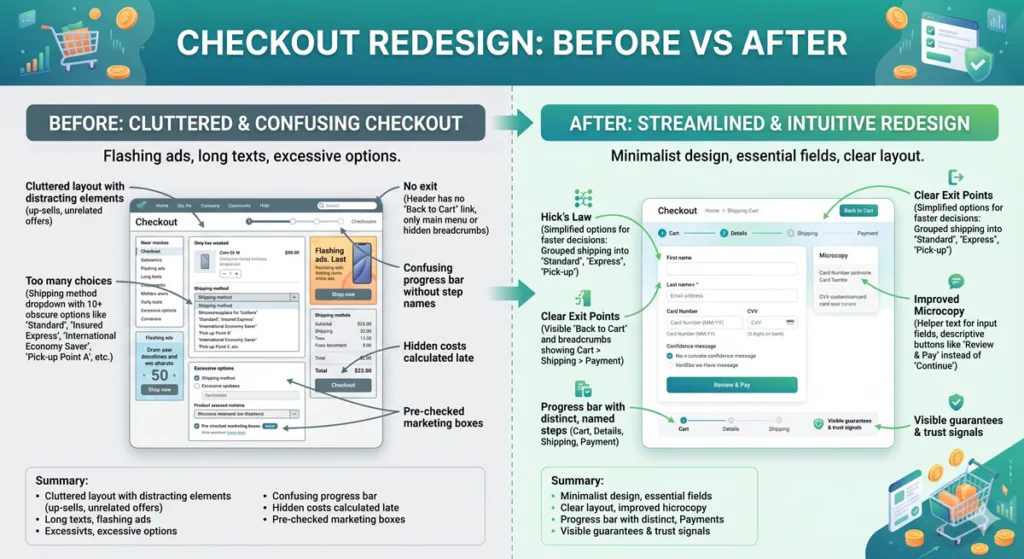
To truly learn these UX terms and laws, pick a screen from your own product or a popular app and annotate which principles are being used—and which are being violated.
Then redesign the screen explicitly applying two or three of the principles above, such as reducing choices with Hick’s Law, simplifying copy with UX writing best practices, and improving exit points.
About the Author
Lalit M. S. Adhikari is a Digital Nomad and Educator since 2009 in design education, graphic design and animation. He’s taught 500+ students and created 200+ educational articles on design topics. His teaching approach emphasizes clarity, practical application and helping learners.
Learn more about Lalit Adhikari.
This guide is regularly updated with the latest information about Adobe tools and design best practices. Last Updated: July 2026