

When we’re starting our journey into digital design, one of the most confusing decisions we’ll face is choosing between Adobe Illustrator and Photoshop. They’re both industry-standard tools from Adobe, they both cost money and they both create beautiful graphics.
But here’s the honest truth that most tutorials don’t tell you: these tools do fundamentally different things and choosing the wrong one for your goals will waste months of your learning time.
I’ve been teaching design for more than a decade now and I see this confusion every single semester. Students struggle for weeks trying to do vector work in Photoshop or photo editing in Illustrator, not understanding why their tools feel “wrong.”
This guide cuts through that confusion. By the end, you’ll know exactly which tool you need, why you need it and what you can realistically create with each one.
Let me be direct: this isn’t a “which is better” debate. Better at what? Illustrator is better at creating logos. Photoshop is better at editing photos. Neither is universally better—they’re just different tools for different jobs.
Table of Contents
Fundamental Difference: Vector vs. Raster Graphics
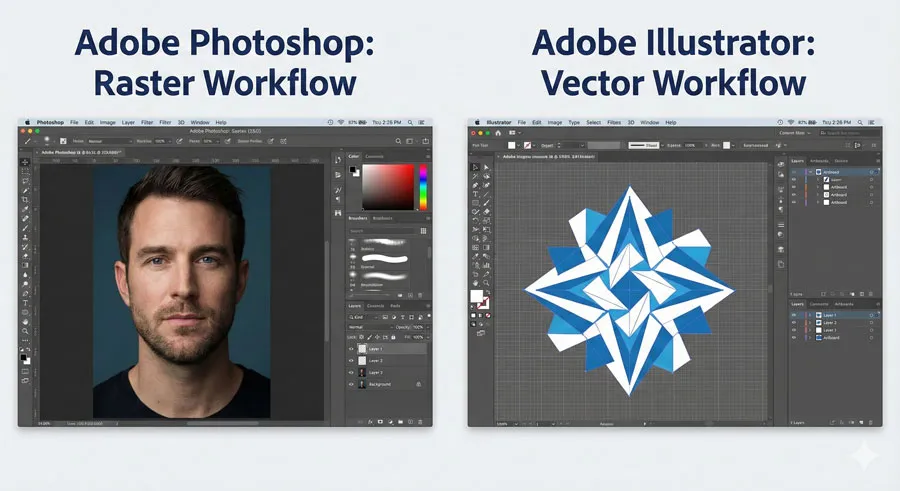
Before we can understand why Illustrator and Photoshop are so different, we need to understand the two types of digital graphics they create. This is the foundation everything else builds on.
What Are Vector Graphics?
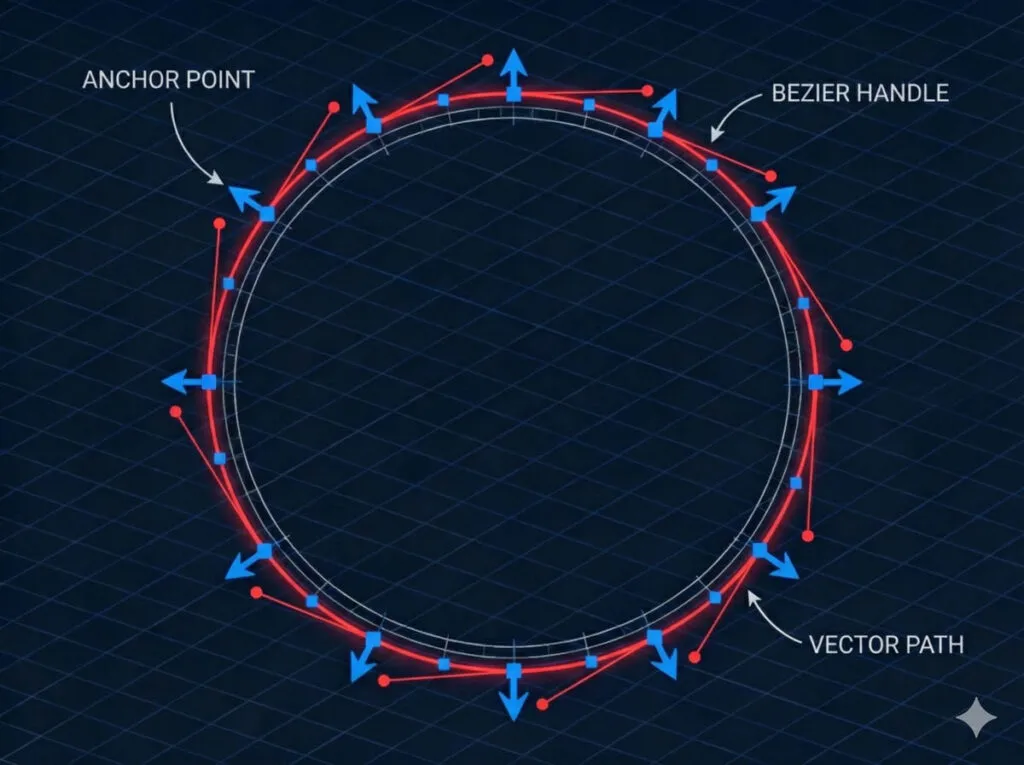
Imagine you’re drawing a circle on paper with a compass. That circle is mathematically perfect—defined by its center point and radius. If you zoom in infinitely, it’s still a perfect circle. It doesn’t get blurry or pixelated. That’s essentially what a vector graphic is: shapes defined by mathematical equations and anchor points, not by individual pixels.
Here’s what makes vectors special:
- Infinitely scalable: A logo you design can be the size of a postage stamp or the side of a building and it remains perfectly crisp
- Easy to edit: Every element is an object you can select, move, resize or reshape independently
- Small file sizes: Because they’re math-based, not pixel-based, vector files are tiny compared to photos
- Perfect for graphics: Logos, icons, illustrations, typography and graphic design thrive in vector format
When you use Illustrator, you’re creating vector graphics.
What Are Raster Graphics?
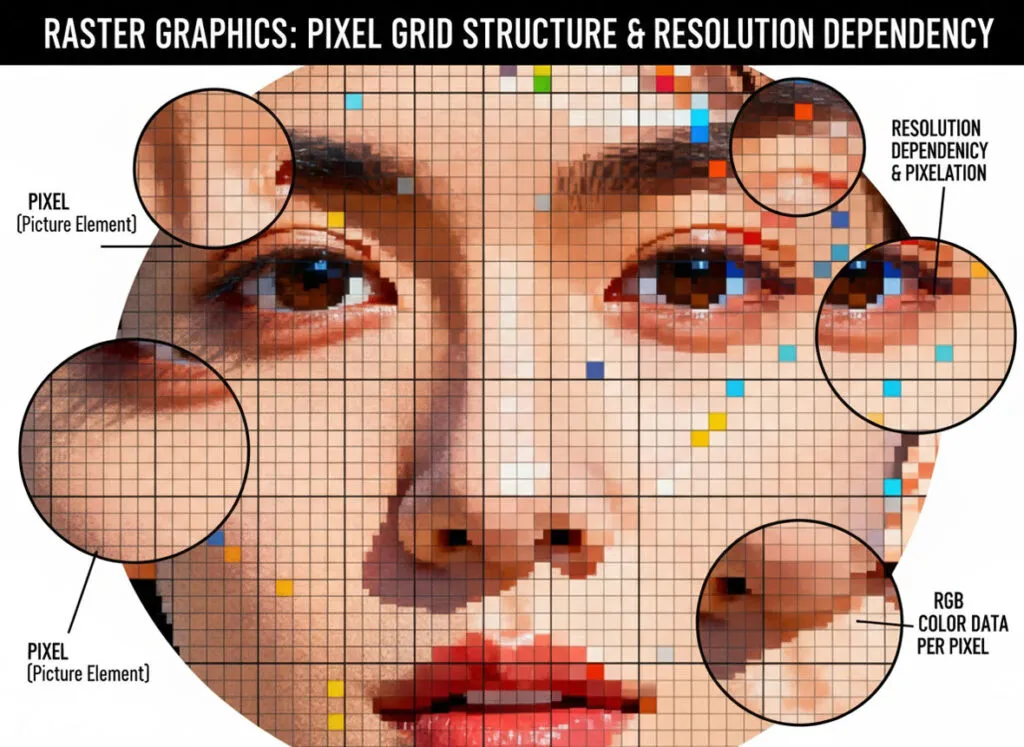
Now imagine taking a photograph with your phone. That photo is made up of millions of tiny squares called pixels, each with its own color value. You’re not seeing mathematical equations—you’re seeing a grid of colored dots.
Here’s what makes rasters different:
- Resolution-dependent: Zoom in and you see pixelation. Scale up a photo and it becomes blurry
- Edit individual pixels: You work with pixels, not objects. It’s like painting
- Large file sizes: High-resolution photos require significant storage
- Perfect for photos: Photographs, paintings and complex imagery thrive in raster format
When you use Photoshop, you’re primarily creating and editing raster graphics.
Example
Think of it this way:
| Vector (Illustrator) | Raster (Photoshop) |
|---|---|
| A logo designed as clean shapes | A photograph of a sunset |
| A custom font or typography | A scanned hand-drawn illustration |
| Icons for a mobile app | Digital painting or artwork |
| Business card design | Product photography |
Key Understanding: This difference in data type explains 90% of why these tools work the way they do. Everything else flows from this fundamental distinction.
Related Topics:
Adobe Illustrator: What It Is & What It’s Built For

Adobe Illustrator is a vector graphics editor. It’s built entirely around creating and manipulating vector shapes, paths, and text. The entire interface, every tool, and every feature is optimized for vector work.
What You Can Create in Illustrator
Best Use Cases:
- Logos and Brand Identity
- Your logo needs to work on a business card, a website, a billboard, and printed materials
- Illustrator keeps it perfect at any size
- Non-negotiable for professional logo design
- Icons and UI Elements
- Website icons, mobile app buttons, interface graphics
- Clean, scalable, perfect for any screen resolution
- The industry standard for icon design
- Custom Typography and Lettering
- Hand-drawn fonts, custom letterpress designs
- Text that becomes artwork, not just readable words
- Posters, album art, title treatments
- Illustrations and Artwork
- Digital illustrations, comic art, vector paintings
- The ability to edit every curve and color independently
- Print-ready illustration work
- Print Design
- Brochures, flyers, business cards, packaging
- Perfect color separation for print production
- Vector text that renders perfectly at any size
- Infographics and Diagrams
- Charts, flowcharts, technical diagrams
- Clean lines and precise shapes
- Professional communication design
How Illustrator Works
You start with basic shapes (circles, rectangles, polygons) or you use the Pen Tool to draw custom paths. Then you combine, reshape, and style these shapes. Every element remains editable forever—you can change a color, resize a shape or modify a curve years later and nothing degrades.
The Core Illustrator Tools You Need to Know
Shape Tools: Rectangle, ellipse, polygon, and star tools create perfect geometric shapes
Pen Tool: The most powerful tool in Illustrator. You click to create anchor points and drag to create curves. It’s how you draw anything custom.
Type Tool: Text in Illustrator is always editable and scalable. You can also put text on paths and create custom typography.
Pathfinder: Combines shapes together in powerful ways (union, subtract, intersect, etc.)
Selection Tools: Move and transform your objects
Colour and Stroke: Control the fill color and outline (stroke) of every shape.
The Illustrator Advantage for Beginners
If your goal is to create graphics that stay perfect at any size, Illustrator is unmatched. There’s no other tool that does vector work this professionally. The learning curve is steep, but the results are worth it.
Related Topics:
Adobe Photoshop: What It Is & What It’s Built For
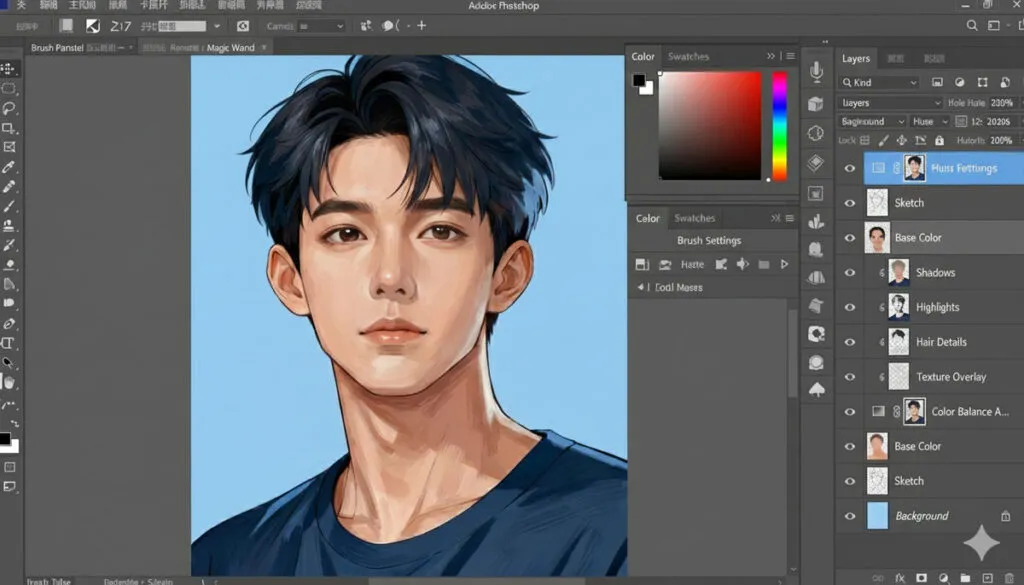
Adobe Photoshop is a raster graphics editor. It’s built around editing and creating pixel-based images. The entire interface, every tool and every feature is optimized for pixel work.
What You Can Create in Photoshop
Best Use Cases:
- Photo Editing and Retouching
- Remove blemishes from portraits, fix exposure, adjust colors
- Professional photography workflows require Photoshop
- The industry standard for photo editing
- Digital Painting and Illustration
- Create artwork with brushes, layers, and blending modes
- Realistic textures and lighting effects
- The tool of choice for digital artists
- Web Graphics and Social Media Content
- Instagram posts, website headers, banner ads
- Easy pixel-perfect editing at web resolutions
- Filters, effects, and color adjustments
- Photo Compositing
- Combine multiple photos into one image
- Remove or add elements from photographs
- Create surreal or realistic composites
- Digital Mockups and Prototypes
- Website mockups, app interface designs
- Quick visualization of design concepts
- Easy to add photos and realistic textures
- Special Effects and Image Manipulation
- Artistic filters, distortions, color effects
- Transform photos into different styles
- Professional image manipulation
How Photoshop Works
You work with layers, which are stacks of images on top of each other. You use brushes, selection tools, and filters to modify pixels. Everything you do is destructive unless you use non-destructive techniques like adjustment layers and smart objects. You’re painting and editing pixels, not manipulating mathematical objects.
The Core Photoshop Tools You Need to Know
Selection Tools: Rectangle, ellipse, lasso, and magic wand select areas of the image
Brushes: Paint, erase, and blend pixels with customizable brushes
Adjustment Layers: Non-destructively adjust color, brightness, and other properties
Layers: Stack images and blend them together with opacity and blend modes
Clone Stamp: Copy pixels from one area to another (perfect for removing objects)
Blur, Sharpen, Dodge/ Burn: Adjust specific areas of the image
The Photoshop Advantage for Beginners
If your goal is to edit photos, create digital paintings, or work with realistic textures and effects, Photoshop is the industry standard. It’s more intuitive for many beginners than Illustrator because it’s closer to physical painting and photography.
Related Topics:
Head-to-Head Comparison: Feature by Feature

Let’s compare these two tools directly across the factors that matter most to beginners.
Comparison Table
| Factor | Illustrator | Photoshop | Winner for Beginners |
|---|---|---|---|
| File Types | AI, SVG, EPS, PDF | PSD, JPEG, PNG, TIFF | Tie (different purposes) |
| Scalability | Infinite, always perfect | Limited by resolution | Illustrator |
| Learning Curve | Steep, abstract | Medium, more intuitive | Photoshop |
| Photo Editing | Poor, not designed for it | Excellent, industry standard | Photoshop |
| Vector Graphics | Excellent, industry standard | Weak, not primary function | Illustrator |
| Digital Painting | Fair, doable but not optimized | Excellent, fantastic brushes | Photoshop |
| File Size | Tiny (math-based) | Large (pixel-based) | Illustrator |
| Editing Forever | Yes, fully non-destructive | Requires care (layers help) | Illustrator |
| Logo Design | Perfect choice | Not ideal | Illustrator |
| Web Graphics | Good for icons, assets | Better for web mockups | Photoshop |
| Collaboration | Good, cloud features | Good, cloud features | Tie |
| Cost | Same subscription | Same subscription | Tie |
| Industry Standard | Must-have for designers | Must-have for designers | Both essential |
Key Differences Explained
Scalability: This is the biggest practical difference. Illustrator graphics stay perfect at any size. Photoshop images degrade when enlarged. If your logo needs to be on a business card AND a billboard, Illustrator is the only reasonable choice.
Learning Curve: Photoshop is easier to learn because the concept is closer to physical painting and photography. Illustrator requires understanding vectors, anchor points and paths which is more abstract.
File Size: A 50MB Photoshop file with complex layers becomes a 500KB Illustrator file with equivalent complexity. This matters less now but it’s significant when sharing files.
Editability: Illustrator lets you change anything forever. In Photoshop, once you flatten layers or merge pixels, those changes are permanent. This is why Photoshop professionals maintain high-quality layered files.
Related Topics:
Decision Framework: Which Tool Should You Learn?
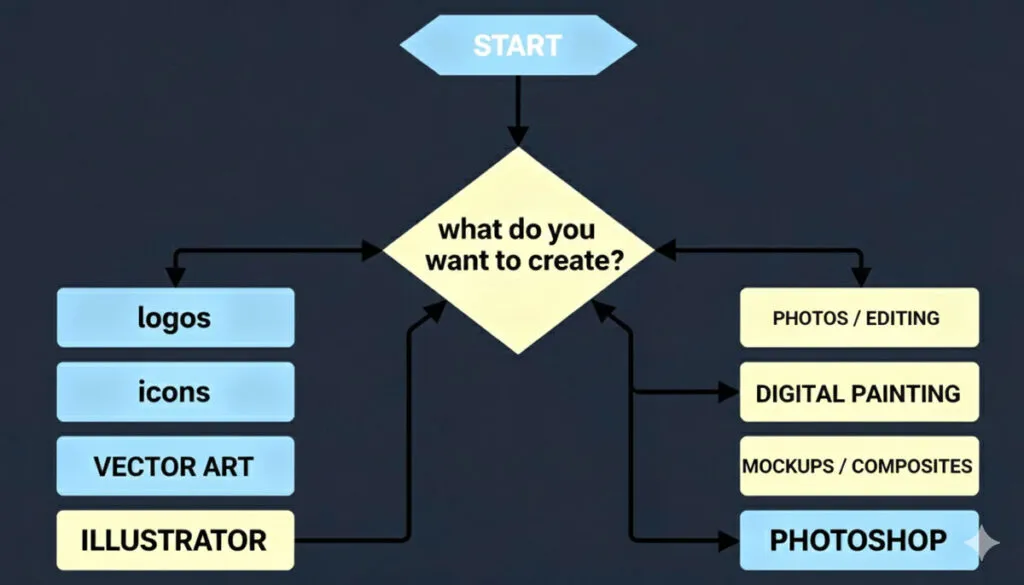
Stop reading tutorials about both and answer these questions honestly. Your answers will show you exactly which tool to learn first.
Question 1: What’s Your Primary Goal?
If your goal is:
- Design logos, brand identity, or icons → Learn Illustrator
- Edit photos or create digital paintings → Learn Photoshop
- Create graphics that need to work at multiple sizes → Learn Illustrator
- Work with photographs or create web mockups → Learn Photoshop
- Graphic design for print → Learn Illustrator
- Social media content or website graphics with photos → Learn Photoshop
Question 2: Do Your Projects Involve Photographs?
- Mostly yes → Photoshop (photos are raster-based)
- Mostly no → Illustrator (vectors are easier to work with)
- Equally both → Learn Photoshop first (steeper learning curve for Illustrator)
Question 3: Do You Need Scalability?
- Yes, designs must work at many sizes → Illustrator (non-negotiable)
- No, fixed size is fine → Either works, Photoshop is easier
- Unsure → Illustrator (it’s never wrong to think about scalability)
Question 4: What’s Your Timeline?
- Need basic competency in 2-3 weeks → Photoshop (easier to learn)
- Have 2-3 months to learn properly → Illustrator (worth the investment)
- Learning long-term → Learn Photoshop first for confidence, then add Illustrator
Question 5: What’s the Actual Job or Project?
Be specific:
- “I want to design my small business logo” → Illustrator
- “I want to edit family photos” → Photoshop
- “I want to create an app interface” → Illustrator (for icons) + Photoshop (for mockups)
- “I want to make Instagram graphics” → Photoshop
- “I want to become a graphic designer” → Both, but start with Illustrator
- “I want to become a photographer” → Photoshop
- “I want to design packaging” → Illustrator
Quick Decision Tree
START: What do you want to create?
├─ Logos, icons, illustrations, brand identity?
│ └─ YES → LEARN ILLUSTRATOR
│
├─ Photos, digital paintings, web mockups?
│ └─ YES → LEARN PHOTOSHOP
│
├─ Graphics that need to scale?
│ └─ YES → LEARN ILLUSTRATOR
│
├─ Graphic design as a career?
│ └─ ILLUSTRATOR FIRST (more complex to learn, apply it everywhere)
│
└─ Still not sure?
└─ ANSWER: Ask yourself "Do I work with photographs?"
└─ YES → PHOTOSHOP
└─ NO → ILLUSTRATOR
Related Topics:
The Honest Learning Curve for Each
Let me tell you what the learning curve actually feels like, because tutorials won’t.
Adobe Illustrator Learning Curve
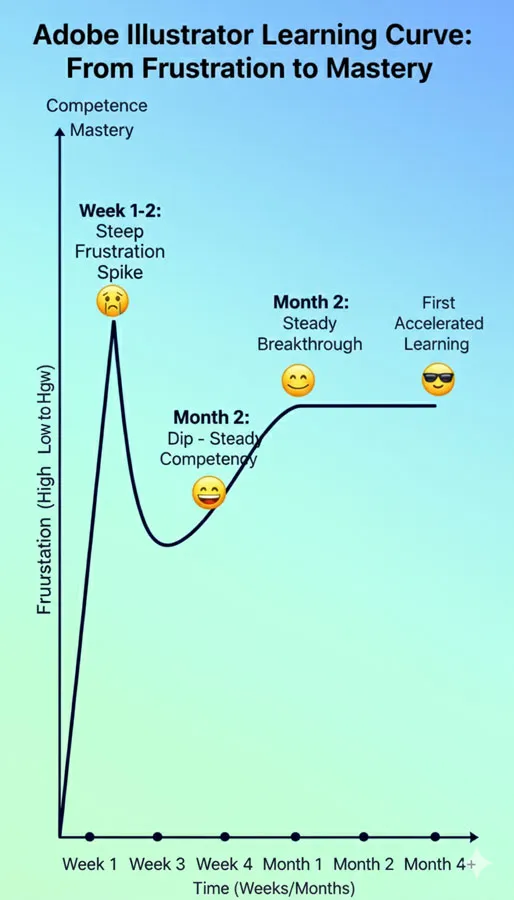
Week 1-2: Frustration Phase
- You understand the idea of vectors intellectually
- But your anchor points look wrong
- Why is the Pen Tool so difficult?
- You question whether you’re wasting your time
Week 3-4: Breakthrough Phase
- Suddenly the Pen Tool clicks
- You can draw shapes that actually look good
- You understand why vector makes sense
- Your first logo attempt is actually usable
Month 2: Competency Phase
- You’re comfortable with basic shapes
- You understand combining shapes (Pathfinder)
- Typography and text effects make sense
- You can create simple logos and graphics
Month 3+: Mastery Phase
- Advanced techniques like brushes and effects
- Complex illustrations and artwork
- Professional-grade designs
- The tool feels like an extension of your creativity
Honest Assessment: Illustrator has a steep learning curve but plateaus there. Once you understand vectors and the Pen Tool, everything else builds logically. The hardest part is the first month.
Adobe Photoshop Learning Curve
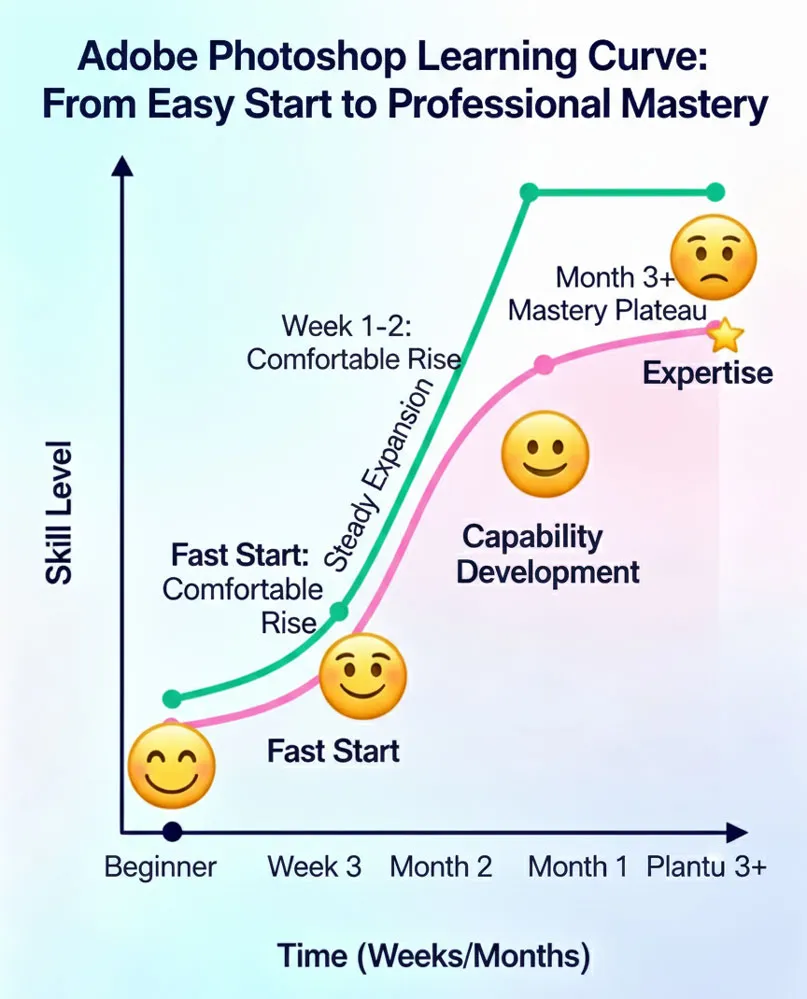
Week 1-2: Quick Start Phase
- Layers make sense (they’re like stacked papers)
- Brushes work like real brushes
- Selection tools are intuitive
- You can make something usable immediately
Week 3-4: Expansion Phase
- Adjustment layers and non-destructive editing
- Blend modes and layer effects
- More sophisticated selections
- Your work looks more professional
Month 2: Capability Phase
- Complex editing workflows
- Photo retouching techniques
- Compositing multiple images
- Professional-level results
Month 3+: Mastery Phase
- Advanced color grading and effects
- Specialized techniques for your niche
- Artistic style development
- Creative problem-solving with pixels
Honest Assessment: Photoshop has a shallower initial learning curve, but depth comes slower. You can make decent-looking things immediately, but professional-grade work takes longer to develop.
Comparison:
- Illustrator: Hard start, then gets easier as concepts click
- Photoshop: Easy start, then gets incrementally harder
- For beginners: Photoshop feels better initially, but Illustrator gets easier faster once you understand vectors
Related Topics:
Cost Comparison: Is One Cheaper?
Here’s the financial reality you need to know.
Official Pricing
Both tools cost the same when purchased through Adobe. I’m not mentioning price here as it depends on region and offer available.
My Honest Take on Cost
If you’re serious about design as a career, the Adobe subscription is worth the investment. These are industry-standard tools. Everyone in professional design uses them. The difference in capability justifies the cost.
If you’re testing the waters, start with free alternatives (Inkscape for vectors, GIMP for raster). Learn the concepts. Then move to professional tools when you’re committed.
Related Topics:
Common Beginner Mistakes to Avoid
I see these mistakes every semester. Learn from others’ experience.
Mistake 1: Using Photoshop to Create Logos
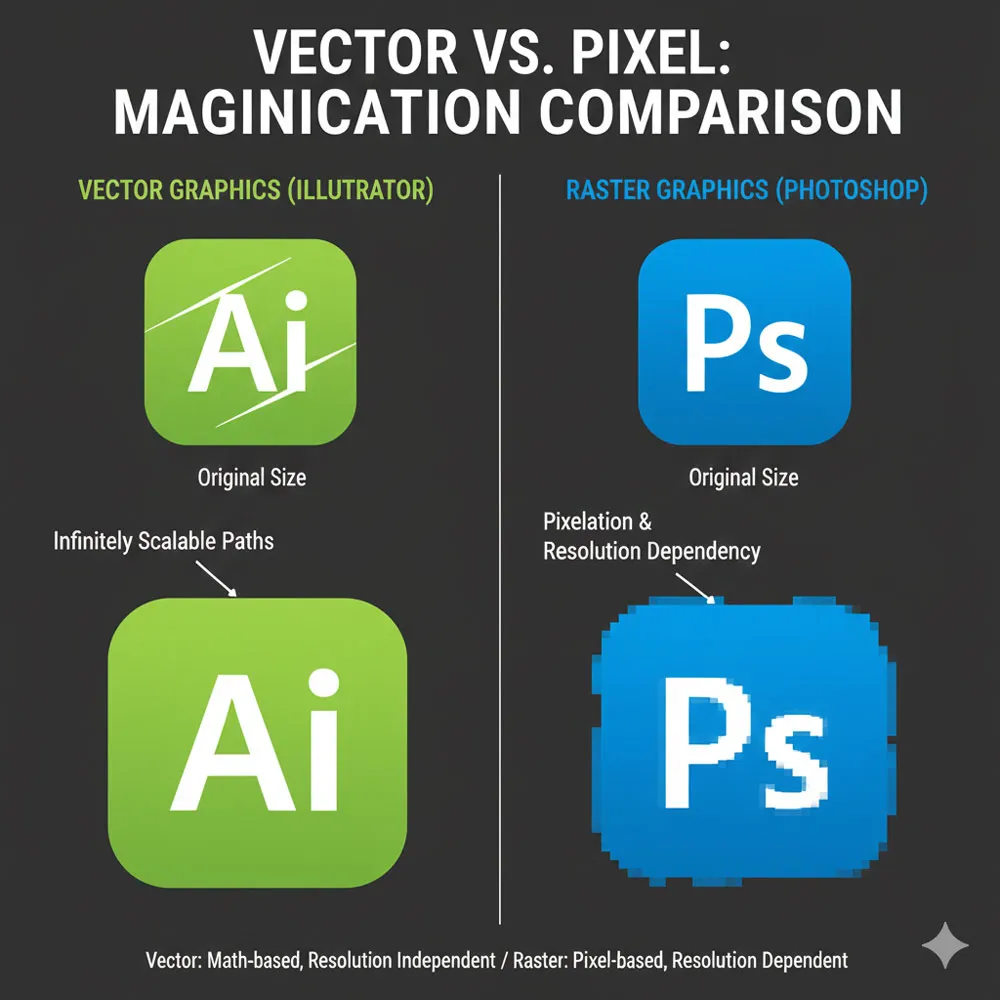
What Happens: You design a logo in Photoshop. Looks great at 1920x1080px. Your client asks for it to work on a business card (small) and a billboard (huge). You scale it and it becomes blurry and pixelated.
Why It Fails: Photoshop works with pixels. When you scale raster images up, you get pixelation. When you scale them down and back up, you lose quality.
Solution: Design logos in Illustrator. Always.
Mistake 2: Trying to Edit Photos in Illustrator
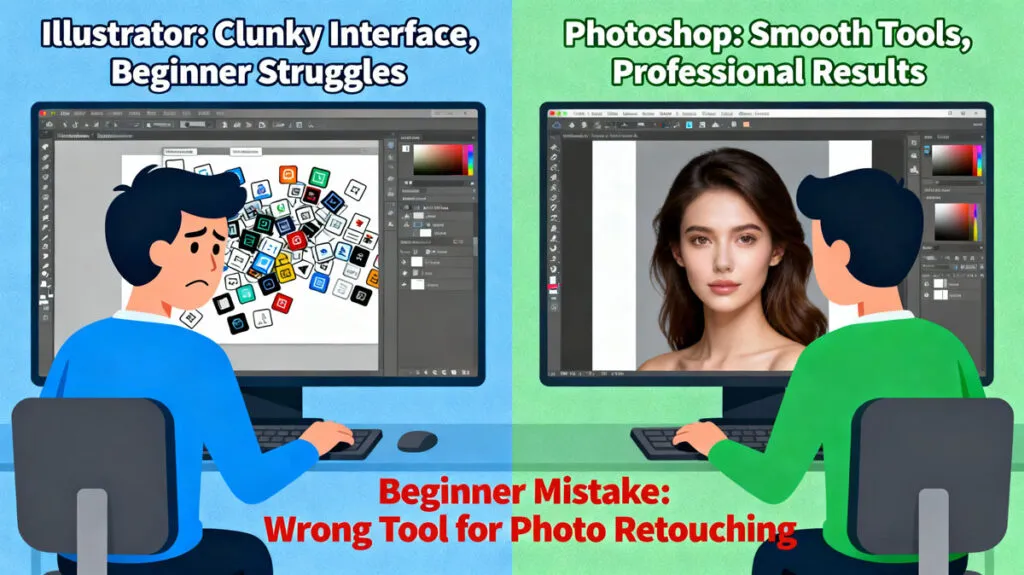
What Happens: You open a photograph in Illustrator. You try to retouch it. The tools feel clunky. You’re frustrated. You give up.
Why It Fails: Illustrator isn’t designed for pixel-level editing. It’s like trying to write a novel with Excel—technically possible, but wrong tool.
Solution: Use Photoshop for photo editing. Period.
Mistake 3: Choosing Based on “Cooler Tools”
What Happens: You’re attracted to Photoshop’s effects, filters, and artistic capabilities. You commit to learning it. Three months later, you realize you actually need vectors.
Why It Fails: You chose the tool based on what seemed interesting, not what your actual projects need.
Solution: Choose based on your end goal, not the tool’s features.
Mistake 4: Not Understanding the Difference
What Happens: You think Illustrator and Photoshop are interchangeable. You use whichever you’re more comfortable with, then wonder why your results look amateur compared to professionals.
Why It Fails: Professionals use the right tool for the job. Using the wrong tool shows in the final product.
Solution: Understand when to use each tool. That understanding is half the battle.
Mistake 5: Trying to Learn Both Simultaneously
What Happens: You jump between Illustrator and Photoshop, learning both at once. You get confused about which tool does what. You make slow progress in both.
Why It Fails: Confusion slows learning. Each tool has enough complexity that learning one thoroughly takes focus.
Solution: Master one tool first (I recommend Illustrator). Then add the other.
Related Topics:
Can You Use Both Together?
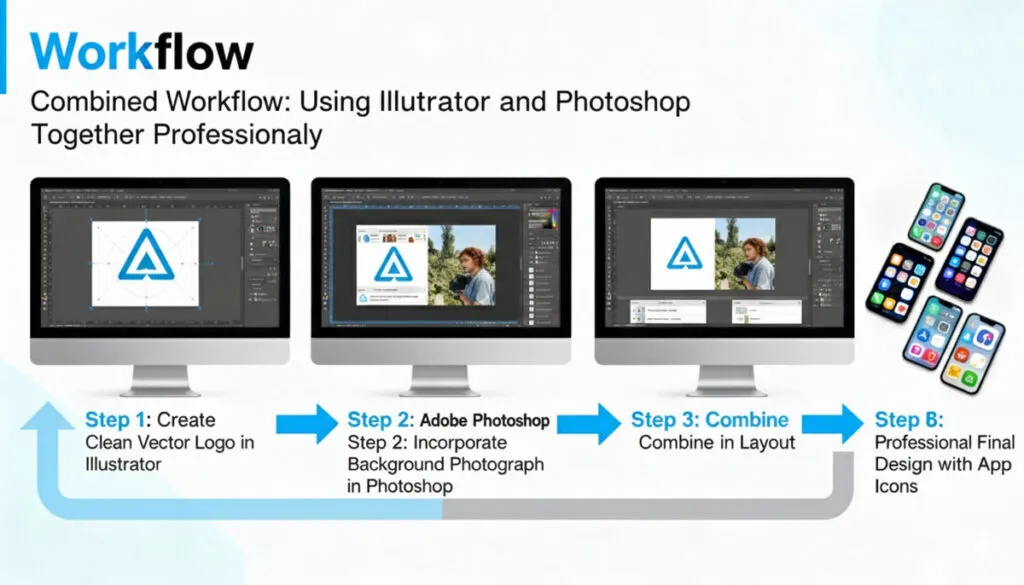
Here’s where things get interesting: most professional design work uses both tools together.
Real-World Workflow Example
Scenario: Designing a Book Cover
- In Illustrator: Design the logo, typography, and graphic elements
- In Photoshop: Incorporate background photograph, adjust colors, add effects
- Back to Illustrator: Place the Photoshop image as an element
- Final output: Create print-ready file combining vector and raster elements
Another Example: Branding Package
- In Illustrator: Design the logo, create variations, build brand identity
- In Photoshop: Create mockups showing the logo on business cards, websites, products
- The Result: Client sees vector logo (scalable) and real-world mockups (realistic)
How They Complement Each Other
| Illustrator Strength | Photoshop Strength | Combined Power |
|---|---|---|
| Clean, scalable graphics | Realistic textures | Beautiful mockups |
| Perfect typography | Artistic effects | Professional results |
| Logo and icon design | Photo integration | Complete brand identity |
| Print-ready vector | Web-realistic mockups | Client presentations |
For Beginners: The Real Advantage
Once you know both tools, you can:
- Design logos in Illustrator (scalable, professional)
- Show them on mockups in Photoshop (realistic, impressive)
- Speak the language of both design disciplines
- Handle almost any design project
The Truth: A complete designer knows both tools. But you don’t start there. You start with one.
Related Topics:
Getting Started With Your First Project
Let’s move from theory to action. Here’s how to start, based on which tool you should learn.
If You’re Starting With Illustrator
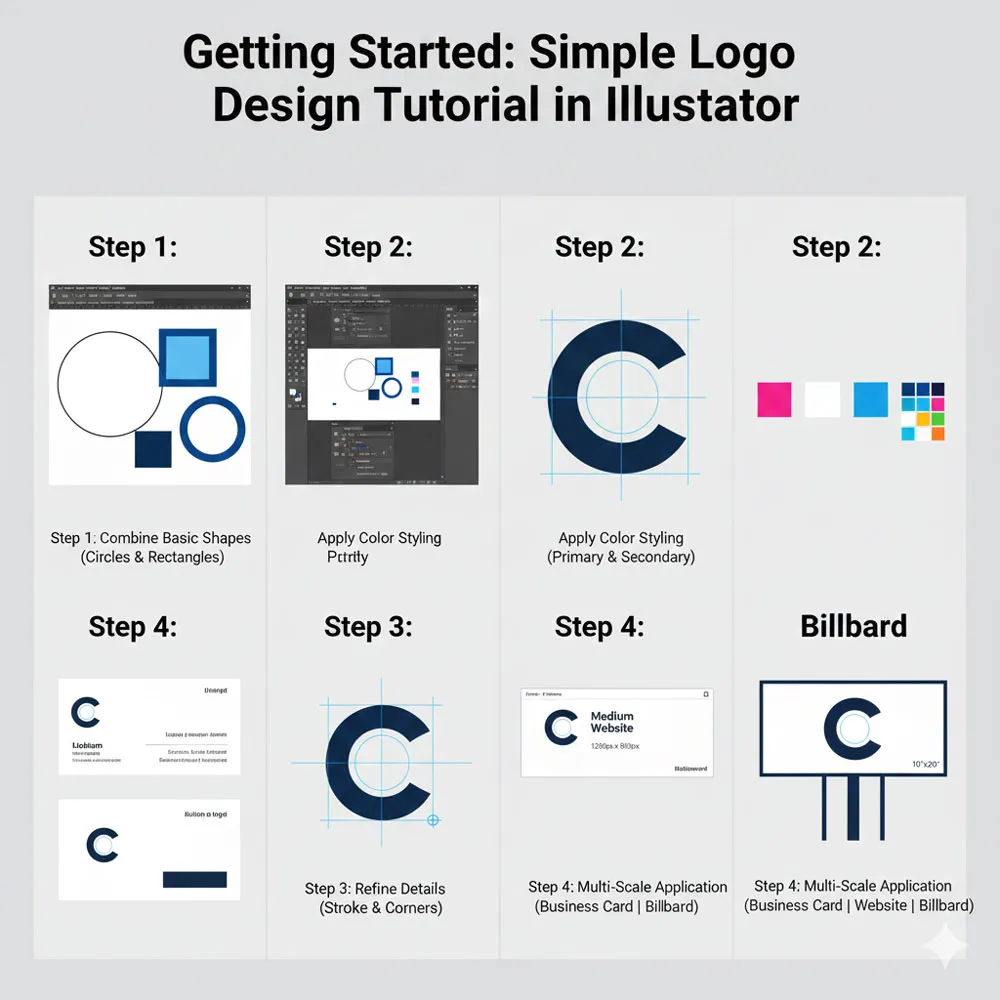
Project 1: Design a Simple Logo
Don’t start with your dream logo. Start simple: maybe a letter mark or geometric shape.
- Open Illustrator
- Understand the artboard (your canvas)
- Use shape tools to create basic shapes
- Combine them into a simple design
- Add color (fill and stroke)
- Export as SVG or PDF
Time Estimate: 2-3 hours to complete
Learning: Shapes, color, basic tools
Takeaway: “I understand how vector graphics work”
Project 2: Design a Simple Icon
Create a basic icon (maybe a hamburger menu, download arrow, or star).
- Set up a square artboard (256x256px is standard)
- Create the icon shape from basic shapes
- Make it look clean and geometric
- Export as SVG
Time Estimate: 1-2 hours
Learning: Precision, simplicity, grid thinking
Takeaway: “I can create professional-looking icons”
If You’re Starting With Photoshop
Project 1: Edit a Family Photo
Don’t start with major retouching. Start with color and exposure adjustments.
- Open Photoshop
- Open a family photo
- Use Adjustment Layers to improve color and brightness
- Crop and straighten the image
- Export as JPEG
Time Estimate: 30 minutes to 1 hour
Learning: Layers, adjustment layers, export
Takeaway: “I can improve photographs”
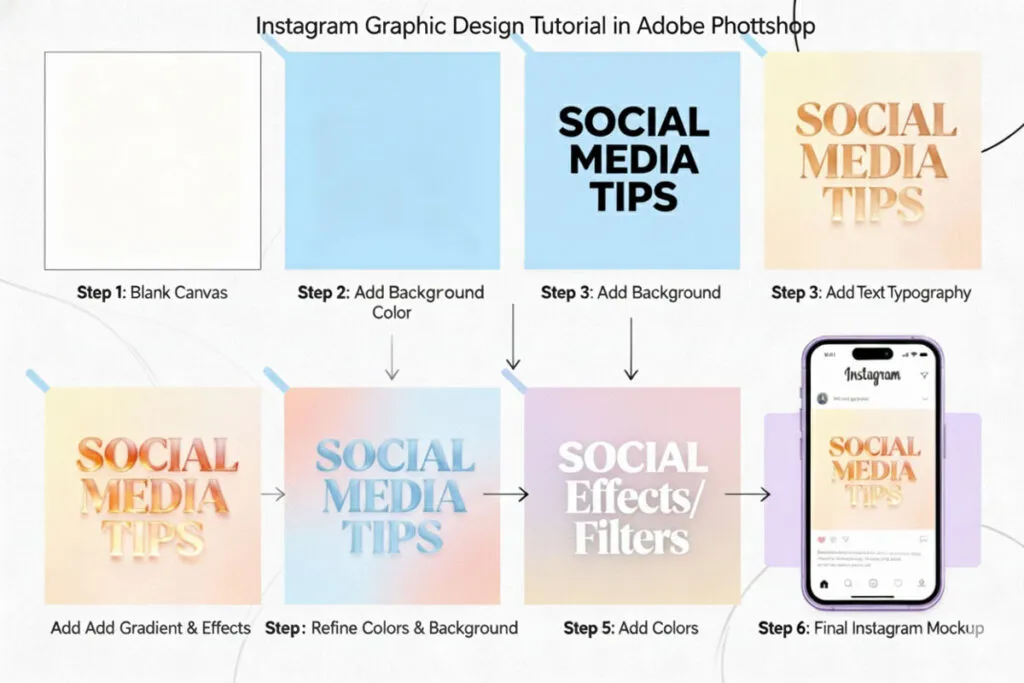
Project 2: Create a Social Media Graphic
Design a simple Instagram post.
- Create new document (1080x1080px for Instagram) (or other standard size of your choice)
- Add a background color or image
- Add text using the Type Tool
- Add some simple effects
- Export as JPEG or PNG
Time Estimate: 1-2 hours
Learning: Layers, text, sizing for web
Takeaway: “I can create web graphics”
Related Topics:
FAQ: Questions Beginners Always Ask
Q: Do I need to learn both tools?
A: Eventually, yes. But not at the same time. Start with one, become competent, then add the other. Most working designers use both regularly, but you don’t start there.
Q: Which tool is “better”?
A: Neither. They’re different. Like asking “Is a hammer better than a saw?” It depends on what you’re building. A hammer is better for nails. A saw is better for cutting wood.
Q: Can I do everything in Photoshop instead of learning Illustrator?
A: Technically, no. You can’t create infinitely scalable graphics in Photoshop. Your logo will look terrible at large sizes. Professionals would immediately see that it was designed in the wrong tool.
Q: Can I do everything in Illustrator instead of learning Photoshop?
A: Technically, no. You can’t retouch photographs effectively in Illustrator. Trying to edit a portrait in Illustrator would be like trying to paint a portrait in Excel.
Q: Is Photoshop really easier for beginners?
A: Initially, yes. The concepts are more intuitive (layers work like stacked paper). But understanding Illustrator concepts takes longer to “click,” which is why many beginners feel Illustrator is harder. Once vectors click though, Illustrator gets easier fast.
Q: What if I choose the wrong tool?
A: You’ll know within a few weeks. The tool will feel wrong. Either it’s missing features you need (using Illustrator for photos) or it’s overly complicated for your task (using Photoshop for logos). When that happens, switch. No shame. You’ve learned something important.
Q: Can I use free alternatives instead?
A: You can learn on free tools (Inkscape for vectors, GIMP for raster). You’ll learn the concepts just fine. But if you want to work professionally or compete with designers using industry-standard tools, eventually you’ll need the real Adobe tools.
Q: How long until I’m good enough for freelance work?
Illustrator: 3-6 months of dedicated practice for basic logos and graphics. 1+ years to design complex brand identities.
Photoshop: 2-3 months for basic editing. 6-12 months to offer professional photo retouching or digital art services.
Q: Do I need both subscriptions?
A: Not initially. Start with one. Once you’re working professionally, the Creative Cloud all-apps subscription (which includes both) becomes cost-effective because you get 20+ apps total.
Q: Which tool will teach me more about design principles?
A: Illustrator, actually. Because vectors force you to think structurally. You can’t hide bad design in a vector—it’s either well-composed or it’s not. Photoshop’s effects and filters can hide structural design problems. Learning Illustrator teaches you to design well. Learning Photoshop teaches you to edit well.
Related Topics:
Conclusion: Making Your Final Decision
Alright, it’s time to decide.
You’ve learned the difference between vectors and rasters. You understand what each tool does. You’ve seen how professionals use them together. You’ve learned the learning curves and common mistakes.
Now, here’s what you need to do:
Step 1: Answer This One Question
Do your projects primarily involve photographs or primarily involve graphics like logos, icons and illustrations?
- Photographs → Choose Photoshop
- Graphics without photos → Choose Illustrator
- Both equally → Choose Illustrator first (harder to learn, but more useful for designing the systems that hold graphics together)
Step 2: Commit to One Tool
Not both. One tool. For the next 3 months, focus on one tool completely. Learn its philosophy, master its core tools, complete multiple projects.
Step 3: Start With a Real Project
Don’t follow random tutorials. Find a real project you care about:
- Design your personal logo
- Edit photos from your last vacation
- Create graphics for a friend’s small business
- Design a poster for something you care about
Real projects teach faster than tutorials because you’re invested.
Step 4: Join a Community
Find other learners. Share your work. Get feedback. Learn from watching others’ work. Communities make learning faster and more enjoyable.
You can join our LTY – Community Group too!
Step 5: Learn the Other Tool When Ready
After 3-6 months of competency in your first tool, add the other. You’ll learn it faster because you understand design principles now. You’ll also appreciate why each tool exists.
Related Topics:
Final Thoughts
Choosing between Illustrator and Photoshop isn’t about choosing the “best” tool. It’s about choosing the right tool for your goal. And here’s the beautiful part: once you make that choice and commit to learning deeply, you’ll develop skills that transfer. The discipline of learning one tool well teaches you how to learn tools in general.
Within a year, you could be competent in both. Within five years, you could be a true professional. The path starts with a single choice and genuine commitment to learning.
So make your choice. Commit. Start. Learn.
Your future self will thank you!
Questions? Comments? Share your journey or ask what tool you should choose. I read every comment and respond to genuine questions.
Want to go deeper? Check out my detailed guides on Adobe Illustrator for Beginners and Adobe Photoshop for Beginners.
Related Topics:
About the Author
Lalit M. S. Adhikari is a Digital Nomad and Educator since 2009 in design education, graphic design and animation. He’s taught 500+ students and created 200+ educational articles on design topics. His teaching approach emphasizes clarity, practical application and helping learners.
Learn more about Lalit Adhikari.
Last Updated: December 2025
This guide is regularly updated with the latest information about Adobe tools and design best practices.
Related Topics: