

A practical guide to building clear, confident slides for class presentations, projects, and oral exams—without turning them into text walls.
Teachers don’t dislike slides because they’re not pretty. They dislike slides when the audience can’t follow the idea.
Most student presentations fail for one reason: the slide deck becomes the script. Students
paste paragraphs onto slides, then read them word-for-word. The audience stops listening, and the teacher can’t see the student’s thinking.
A deck that teachers love does the opposite: it supports your speaking. Your slides make ideas easier to understand, not harder.
Table of Contents
What teachers actually reward (even if they don’t say it)

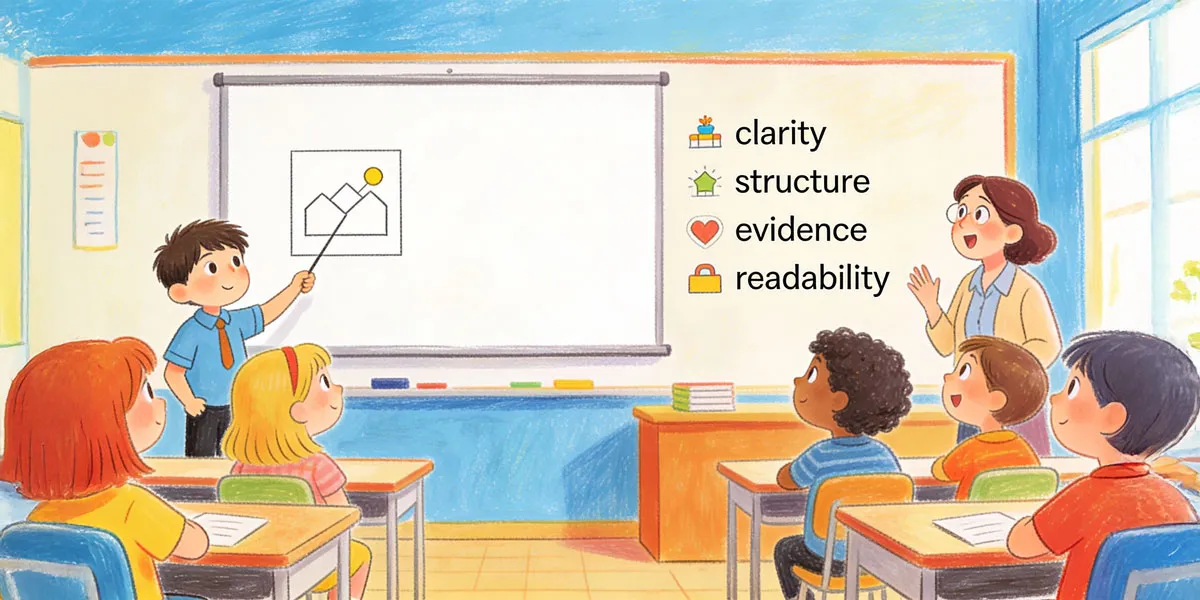
Design for these four things, and your deck will instantly feel teacher-friendly:
- Clarity: your main point is obvious in 3 seconds.
- Structure: the deck has a logical beginning, middle, and end.
- Evidence: claims are supported by examples, data, or references.
- Readability: text is easy to read from the back of the room.
Style matters, but it’s a bonus. Clarity is the grade.
Step 1: Build the story spine before you touch slides
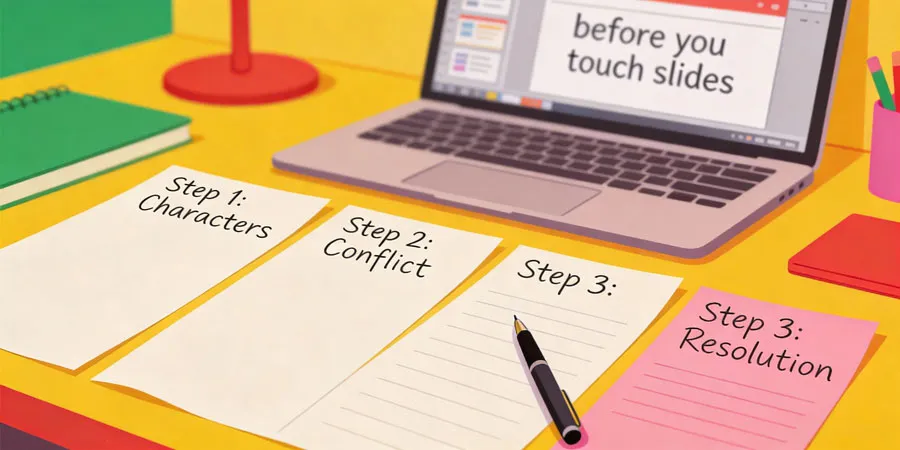
Before PowerPoint or Google Slides, write your story spine in plain text. One sentence per slide is enough.
Use this structure for most school presentations:
- Hook: a question, surprising fact, or short scenario.
- Goal: what you’re going to explain or prove.
- Point 1: your idea plus evidence.
- Point 2: your idea plus evidence.
- Point 3: your idea plus evidence.
- Conclusion: summarise and explain why it matters.
- Q&A (optional): one final slide that says “Questions?”
If you can’t explain your presentation in 30 seconds using this spine, your slides will usually feel messy—even with a nice theme.
Step 2: Use slide titles that say the point (not just the topic)

A simple trick: turn your topic into a claim.
- Bad title: Global Warming
- Better title: Human activity is the main driver of global warming.
Slide titles should be statements, not labels. Statements show understanding.
Step 3: One idea per slide
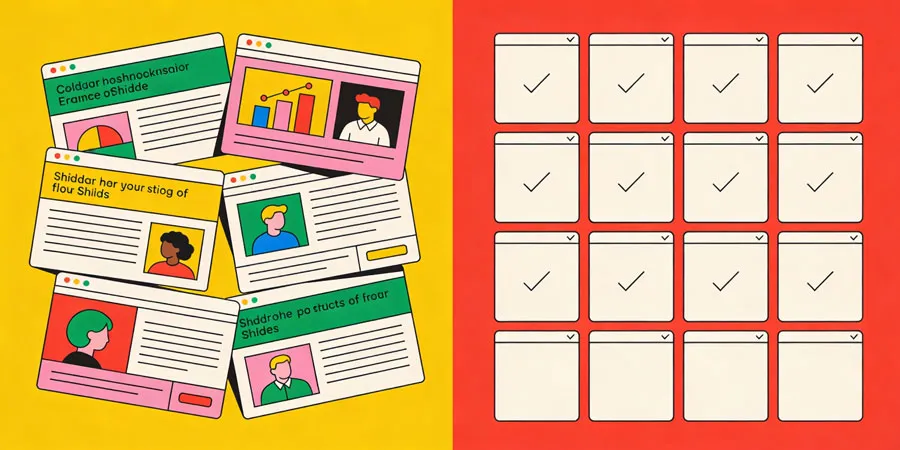
Students often cram because they’re afraid teachers will think “too many slides = not concise.” In reality, teachers prefer 12 clear slides over 6 confusing slides.
Use this checklist
- One headline that states the point.
- One main visual or one main bullet set (don’t let them fight).
- Only what you need to explain the point out loud.
Step 4: Fix the #1 problem—too much text
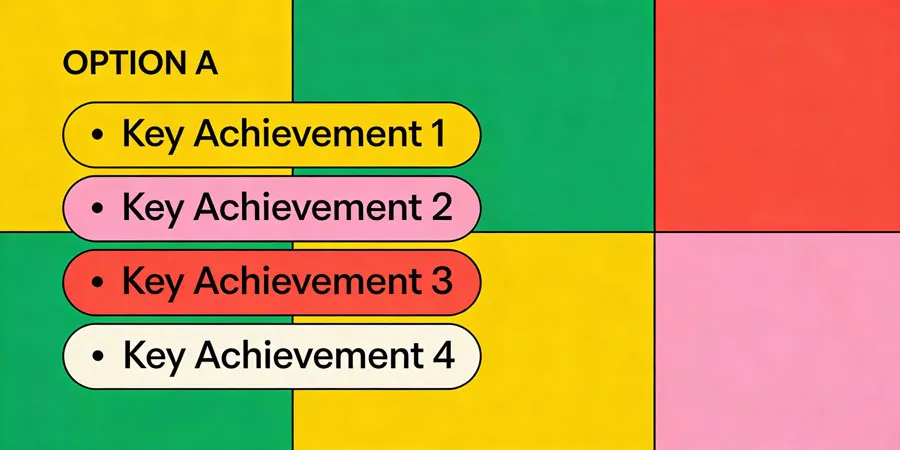
If a slide has more than about 30–40 words, it’s usually doing the talking for you. Instead, choose one of these layouts:
Option A: Speaking bullets
- 3–5 bullets max.
- 6–10 words per bullet.
- Use parallel phrasing (same grammar shape).
Option B: Diagram beats paragraph
If you’re explaining a process, a diagram is clearer: arrows plus labels, and you speak the explanation.
Option C: Compare with layout, not lists
If you’re comparing two things, use two columns (Before/After, Pros/Cons, Cause/Effect). Your audience understands faster.
Step 5: Visual hierarchy—make the important thing obvious

Hierarchy is how you guide the eye. Use this simple recipe:
- Headline: largest text.
- Key term or number: second-largest (or bold).
- Supporting detail: smaller and limited.
- Whitespace: leave breathing space around your main elements.
Most messy student slides happen because everything looks equally important.
Step 6: Data slides that don’t confuse
If you use charts, design them for a classroom audience.
Do this:
- Write a takeaway headline (e.g., “Recycling increased after the campaign”).
- Label axes clearly with units.
- Show one comparison per chart.
- If the chart is complicated, use a small table with 3–5 rows instead.
Avoid tiny labels, huge screenshots of tables, and charts where the audience has to guess what matters.
Step 7: Consistency makes you look professional instantly
Consistency is what makes slides look polished—even with basic design.
Simple rules that work
- Use 1–2 fonts only.
- Use 2–3 colours max.
- Keep headings in the same position.
- Align everything (don’t eyeball it).
If you want built-in help for layouts, Microsoft explains PowerPoint’s Designer here: Create professional slide layouts with Designer (Microsoft Support)
Google also shares practical guidance for building great presentations: Tips for great presentations (Google Workspace Learning Center)
Step 8: Use speaker notes instead of hiding scripts on slides
If you paste paragraphs onto slides because you’re scared you’ll forget, put those points in speaker notes instead.
A student-friendly method
- Write 3–4 short talking points (not full sentences).
- Underline the one phrase you must say on that slide.
- Practise once with notes, then once without reading them.
The teacher-love checklist (run this before submitting)
| Slide check | Yes/No | Fix if ‘No’ |
| Main point is clear in 3 seconds | Rewrite the headline as a statement | |
| Text is readable from far away | Increase font size; reduce words | |
| One idea per slide | Split the slide into two | |
| Visual supports the message | Replace paragraphs with diagram/image | |
| Consistent layout and fonts | Use theme + align elements | |
| Evidence/examples included | Add one example, data point, or reference |
When feedback matters (and how students improve faster)
Some students know the content but struggle to present it clearly under pressure. That’s normal. Sometimes the quickest improvement comes from practising with someone who can help you tighten your storyline, improve clarity, and refine slides so they support speaking.If you want personalised guidance, SmileTutor.sg is one option families use to connect with tutors across subjects who can help students practise presentations and communicate ideas more confidently.
Conclusion
Slides teachers love aren’t fancy. They’re clear. Start with structure, write titles that state your point, keep one idea per slide, and reduce text so your voice does the explaining. Use consistency and hierarchy to guide the eye. When slides support your speaking, your confidence rises—and your teacher can focus on your thinking.
About the author
This article was prepared by the SmileTutor editorial team. SmileTutor shares practical learning strategies that help students communicate clearly and perform confidently in school assessments.